Custom Date Formatter

Build A Pattern, Pick A Locale And Zone

100% Browser-Based Local Processing
Live preview
Pattern, locale & zone
Leave empty to format the current date and time.
ISO 8601
Locale native
Zone offset
Batch mode
Every line is parsed on its own; a line that is not a date is marked rather than dropped.

Formatting, locale names and time-zone conversion all run in your browser through its built-in internationalization data. Nothing you paste is uploaded or stored.

Privacy Focused

🔒 Local Processing. The values you enter never leave your device.

Instant Results

🌐 Fully Client-Side. Runs instantly in your browser.

No Signup

⚡ No accounts. No API keys. Just open and use.

Browser Based

🚀 No installs, no sign-ups, no conversion limits.

Custom Date Formatter: Write The Date, Don't Retype It

Every system wants a date in its own shape. A report wants Friday, 25 December 2026, a filename wants 20261225-153000, a German invoice wants 25. Dezember 2026, and a database column wants 2026-12-25 15:30:00. This custom date formatter lets you compose that shape once from tokens, see it render live, and then apply it to as many dates as you have.

Three settings decide the output. The pattern is what you build from the token pills or type by hand. The locale decides the words — month names, weekday names and the AM or PM marker come from the language you choose, not from English with a translation bolted on. The time zone decides which wall clock the date is read against, with daylight saving applied for the specific date rather than a flat offset.

The batch panel is what turns it from a preview into a working tool: paste a column of dates, and every line is parsed on its own and re-rendered with the same pattern. Mixed input is fine — ISO strings, epoch numbers and ordinary text can sit in the same list. If you would rather see one unknown value in every standard format than build a pattern, use the Date Format Converter instead.
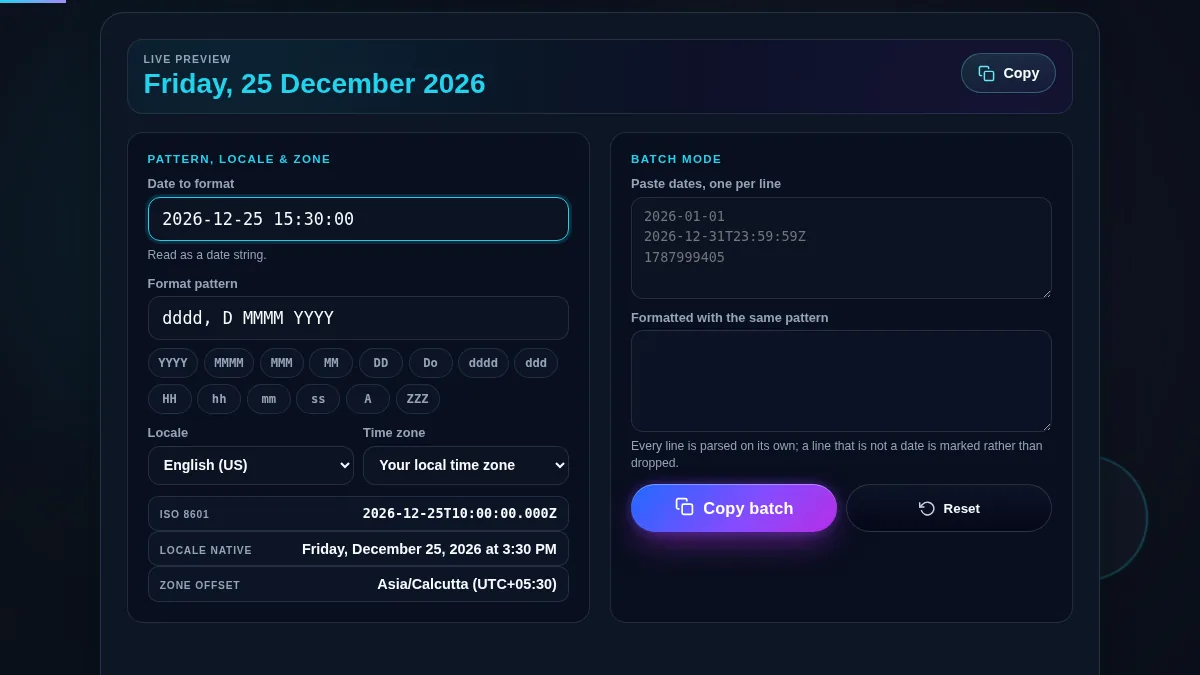
Full custom date formatter workspace: the live preview bar on top, the pattern panel with fourteen token pills, locale and time zone dropdowns and the ISO, locale-native and zone-offset rows on the left, and the batch mode panel on the right
The whole tool on one screen: the pattern, locale and zone controls on the left, batch mode on the right.

The Format Tokens, And What Each One Prints

TokenPrintsExample
YYYY / YYFour- or two-digit year2026 / 26
MMMM / MMM / MM / MMonth name, short name, padded or plain numberDecember / Dec / 12 / 12
DD / D / DoDay of month, padded, plain, or ordinal25 / 25 / 25th
DDDDay of the year359
dddd / dddWeekday name, full or shortFriday / Fri
HH / H / hh / hHour, 24-hour or 12-hour, padded or plain15 / 15 / 03 / 3
mm / ss / SSSMinutes, seconds, milliseconds30 / 00 / 000
A / aDay period, upper or lower casePM / pm
Z / ZZ / ZZZUTC offset with colon, without, or named+05:30 / +0530 / GMT+05:30
X / xEpoch value in seconds or milliseconds1798608600 / 1798608600000
[text]Anything in brackets, printed literally[T] prints T
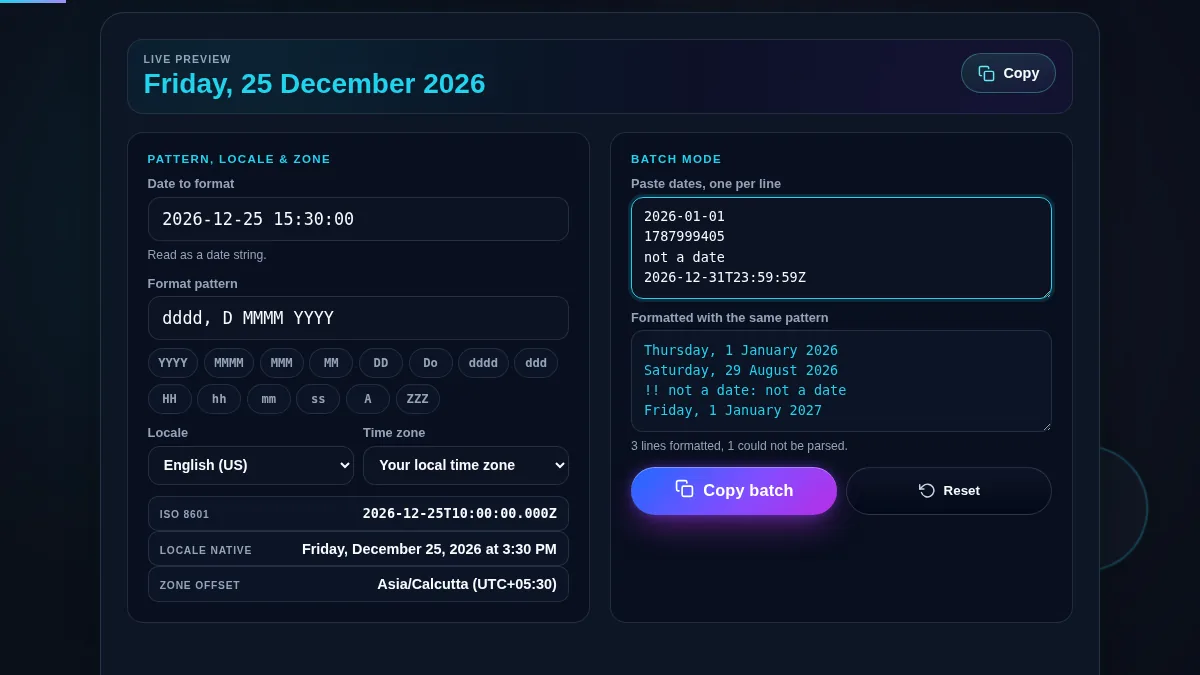
Custom date formatter in batch mode with four dates pasted in, three formatted with the same pattern in the output box and one line marked as not a date, and the count line reading three lines formatted
Batch mode applies one pattern to a whole pasted list and marks the line it could not parse.

How to Build a Custom Date Format

Four steps from an empty pattern to a formatted column.

Step 1: Give it a date to preview against

Type a date into the top field, or leave it empty to work against the current moment. Pick something awkward on purpose — a single-digit day, a date in December, a time after noon — because that is where padding and day-period tokens show their real behaviour. The line under the field confirms how your input was read.

Step 2: Compose the pattern

Click a token pill to insert it at the cursor, and type your own separators between them — commas, slashes, dashes and spaces are all passed straight through. If you need a letter that is also a token, wrap it in square brackets: YYYY-MM-DD[T]HH:mm:ss keeps the T of an ISO string. The preview at the top updates on every change.

Step 3: Set the locale and the time zone

The locale changes the words your pattern prints; the time zone changes which clock reading the date is taken from. Watch the zone offset row underneath — it names the zone and the exact offset applied to your date, which is how you can tell a summer reading from a winter one. For anything a machine will read, or anything crossing a border, pick UTC.

Step 4: Run the pattern over the whole list

Paste your dates into the batch box, one per line. The output box fills as you type and the count underneath tells you how many lines were formatted and how many were not. Copy the result straight back into your spreadsheet or script. Because the parser is the same one the preview uses, anything that works above works in the list.

Frequently Asked Questions

How is this different from the date format converter?

The date format converter answers what an unknown value is by showing it in every standard format at once. This tool goes the other way: you already know the shape you want, so it gives you a pattern builder, a locale and a time zone, and a batch panel that applies the result to a whole list. Use the converter to read a date, use this one to write one.

Which tokens can I use in a pattern?

YYYY and YY for the year, MMMM MMM MM and M for the month, DD D and Do for the day, DDD for the day of the year, dddd and ddd for the weekday, HH and H for 24-hour time, hh and h for 12-hour time, mm ss and SSS for minutes, seconds and milliseconds, A and a for the day period, Z ZZ and ZZZ for the UTC offset, and X or x for the epoch value. Anything inside square brackets is copied through literally.

What does the locale setting actually change?

It changes the words, not the numbers. Month names, short month names, weekday names and the AM or PM day period all come from the locale you pick, so the same pattern gives December in English, Dezember in German and dicembre in Italian. Numeric tokens are always written with Latin digits so the output stays usable in a filename or a database column.

How does the time zone option handle daylight saving?

It asks the browser for the wall-clock reading in that zone on that particular date rather than adding a fixed number of hours, so a July date in London comes out at UTC+01:00 and a January one at UTC+00:00. The zone offset row under the selectors shows which offset was applied to the date you entered.

What is batch mode for?

Reformatting a column. Paste a list of dates, one per line, and every line is parsed on its own and rendered with the pattern you built, so a mixed list of ISO strings, epoch numbers and ordinary text comes out in one consistent shape. A line that cannot be parsed is marked in place with a warning rather than dropped, which keeps the output lined up with your input.

Can I use it to make a filename-safe or SQL date?

Yes. YYYYMMDD-HHmmss gives a stamp with no spaces or colons, which is safe on every filesystem, and YYYY-MM-DD HH:mm:ss is the shape most SQL datetime columns expect. Set the time zone to UTC for anything that will be read by a machine or by someone in another country.

Does the custom date formatter work on a phone?

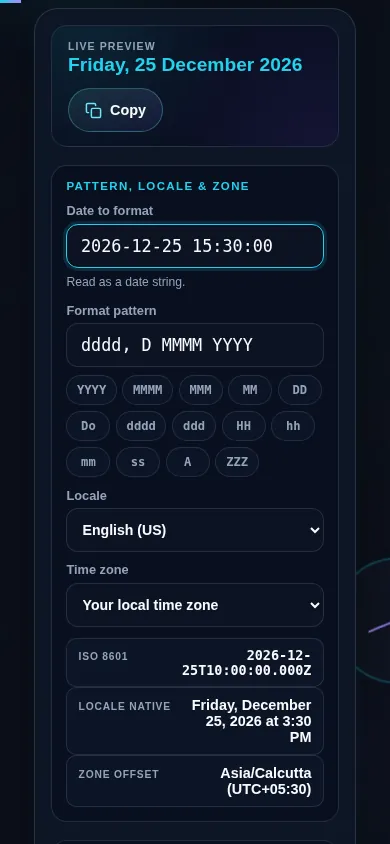
Yes. On a narrow screen the pattern panel and the batch panel stack into one column with the live preview kept at the top, the token pills wrap onto as many rows as they need, and the locale and time zone dropdowns go full width. Every control meets a 44px touch target.

Custom date formatter on a 390px phone: the live preview bar at the top, then the date input, pattern field and token pills stacked in a single column above the locale and time zone dropdowns
The custom date formatter on a phone — one column, with the live preview kept at the top.

Still have questions?

If you can't find the answer you're looking for, feel free to contact our support team.

Contact Us