Online Timer

Named countdowns, quick presets and a sound alert

100% Browser-Based Local Processing
05:00
Timer 1
Your timers

    Privacy Focused

    🔒 Local Processing. The values you enter never leave your device.

    Instant Results

    🌐 Fully Client-Side. Runs instantly in your browser.

    No Signup

    ⚡ No accounts. No API keys. Just open and use.

    Browser Based

    🚀 No installs, no sign-ups, no conversion limits.

    Online Timer: Several Countdowns on One Screen

    This online timer counts down in hours, minutes and seconds, and it does not stop at one. Press Add timer and a second countdown joins the list under the steppers, carrying its own name and its own duration. Up to eight run together. The ring shows whichever one you have selected while every other timer keeps counting in its row, so a pan that needs 12 minutes and a loaf that needs 40 can share a screen without a second tab.

    The countdown is read from your system clock rather than counted by the page. Pressing Start records the finish time as a timestamp, and the remaining seconds are worked out from the clock on every frame, which is why moving to another tab does not cost you the seconds a plain interval loses. Nothing is uploaded. Timer names and durations go into localStorage on your own device so your setup survives a reload, and the same measure-from-the-clock approach runs the Pomodoro Timer.

    Six presets cover 1, 5, 10, 25, 30 and 60 minutes in a single tap, and the +1m control stretches a countdown that is already running instead of restarting it. Auto-repeat turns any timer into a loop for rounds, sets or drills. If you need a date rather than a duration, the Countdown Timer counts down to a moment on the calendar.
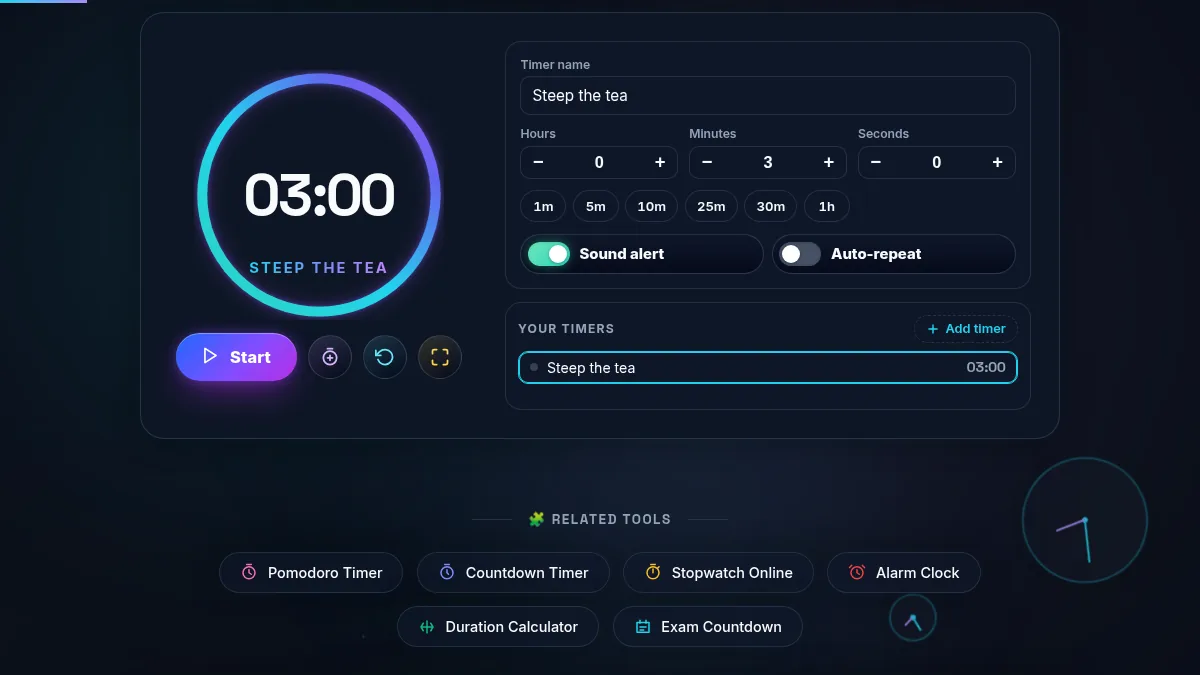
    Online Timer workspace with a gradient countdown ring, Start, add-a-minute, Reset and Fullscreen controls, a timer name field, hour, minute and second steppers, six preset pills, sound and auto-repeat switches, and the timer list
    The whole tool on one screen: the countdown ring and its controls sit beside the name field, the duration steppers, the presets, and your list of timers.

    How to Use the Online Timer

    Five steps, from a blank timer to several counting down together.

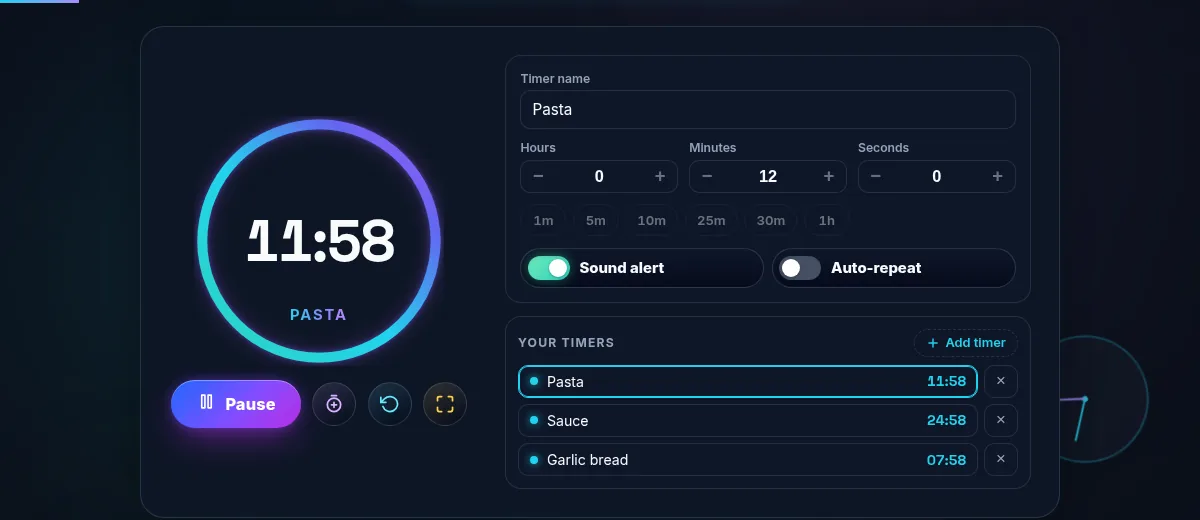
    Three timers named Pasta, Sauce and Garlic bread counting down at the same time in the Online Timer list, each row showing its own remaining time beside the selected timer in the ring
    Three timers running at once. Each row keeps its own countdown; the ring follows whichever row you select.
    Step 1: Name the timer

    Type what the countdown is for into the Timer name field. The name appears under the ring and in the row for that timer, which is the whole point once three of them are running: "Pasta" and "Sauce" tell you which alert just fired, "Timer 2" does not.

    Step 2: Set the duration

    Use the minus and plus buttons on the hours, minutes and seconds fields, or type a number straight in. The longest countdown the tool accepts is 23:59:59. For a common length, tap a preset instead: 1m, 5m, 10m, 25m, 30m or 1h fills all three fields at once. The ring redraws as soon as the numbers change, so there is nothing to submit.

    Step 3: Start it, and stretch it if you need to

    Press Start. The same button becomes Pause, and the ring drains anticlockwise as the seconds go. If the thing you are timing needs longer, press the +1m button rather than resetting: it adds 60 seconds to the countdown in flight and leaves the elapsed time alone. Reset returns the timer to the duration in the fields.

    Step 4: Add the next timer

    Press Add timer under the switches. The new countdown starts at five minutes, takes the selection, and the name and duration fields now edit it. Click any row in the list to switch back; the ring and the fields follow your choice while the others keep running. The × on a row deletes that timer, and the last remaining one cannot be deleted.

    Step 5: Go fullscreen to read it across the room

    The fourth control in the row opens fullscreen. Everything but the ring, the countdown and the timer name drops away, and the digits scale to the height of the screen, which is what you want on a laptop propped on a worktop or a projector in a classroom. Press it again or hit Escape to come back. Timers you are not looking at carry on regardless.

    Frequently Asked Questions

    Can I run more than one timer at the same time?

    Yes. Press Add timer and the new countdown joins the list under the steppers, with its own name and its own duration. Every timer in that list counts down at once, whichever one the ring is showing, and each fires its own alert when it reaches zero. Use it for three pans on one hob, or for the work and the rest inside a single set. Click any row to bring that timer into the big ring.

    Does the countdown stay accurate in a background tab?

    Yes. Browsers throttle timers in a hidden tab, so a countdown built on a plain interval loses seconds. This one stores the finish time as a system timestamp when you press Start and works out the remaining time from the clock on every frame, so switching tabs or minimising the window costs nothing. Come back after ten minutes away and the display is already correct.

    Will the alert sound, and is anything saved or uploaded?

    The alert is a short two-note tone generated by the Web Audio API, so there is no sound file to download and it plays in a background tab. Turn it off with the Sound alert switch. Your timer names and durations are written to localStorage on your own device so the list survives a reload; running state is not stored, and nothing is ever sent to a server.

    Does the Online Timer work on a phone?

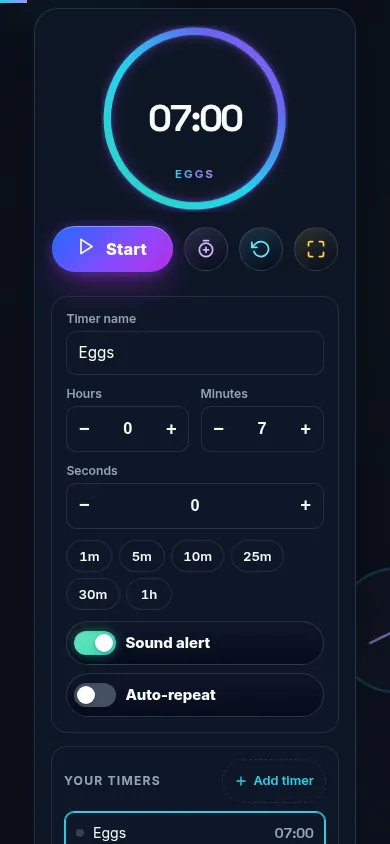
    Yes. Below 768px the two-column layout stacks into one: the ring, the countdown and the Start, add-a-minute, Reset and Fullscreen controls sit at the top, with the name field, the hour, minute and second steppers, the preset pills and your timer list below. Every control is at least 44px, and fullscreen still fills the screen for a timer you want to read across a kitchen.

    Online Timer on a 390px phone: the countdown ring and the Start, add-a-minute, Reset and Fullscreen controls stacked in one column above the timer name field and the hour, minute and second steppers
    The Online Timer on a phone — one column, with the ring and the Start button in the first screen.

    Still have questions?

    If you can't find the answer you're looking for, feel free to contact our support team.

    Contact Us