Exam Countdown Timer

Days, hours and minutes to every paper you are sitting

100% Browser-Based Local Processing

Unnamed exam

Pick a date to start the countdown

00Days
00Hours
00Min
00Sec
Preparation time used 0%
  • months
  • weeks
  • days
  • hours
Exam details
Study pace

Add topics for a pace

Your exams

    Privacy Focused

    🔒 Local Processing. The values you enter never leave your device.

    Instant Results

    🌐 Fully Client-Side. Runs instantly in your browser.

    No Signup

    ⚡ No accounts. No API keys. Just open and use.

    Browser Based

    🚀 No installs, no sign-ups, no conversion limits.

    Exam Countdown Timer: How Long Is Actually Left

    Put in the date and time your exam starts and this page counts down to it in days, hours, minutes and seconds. It keeps counting whether the tab is in front of you or not, because the remaining time is read from your system clock on every update rather than counted up by the page. Come back after a weekend and the number is already right.

    You can hold more than one exam at a time. Press Add exam and the new one joins the list on the right with its own name, its own date and its own topic count, up to eight. Click any row to bring that exam into the big readout. The row keeps showing its own time left either way, so a paper in nine days and a paper in six weeks are both on screen at once.

    Everything you type stays on your device. Names, dates and topic counts are written to localStorage in your own browser so the list survives a reload, and nothing is sent anywhere. If you want a plain countdown to any date instead, the Countdown Timer does that, and the Pomodoro Timer handles the study sessions themselves.
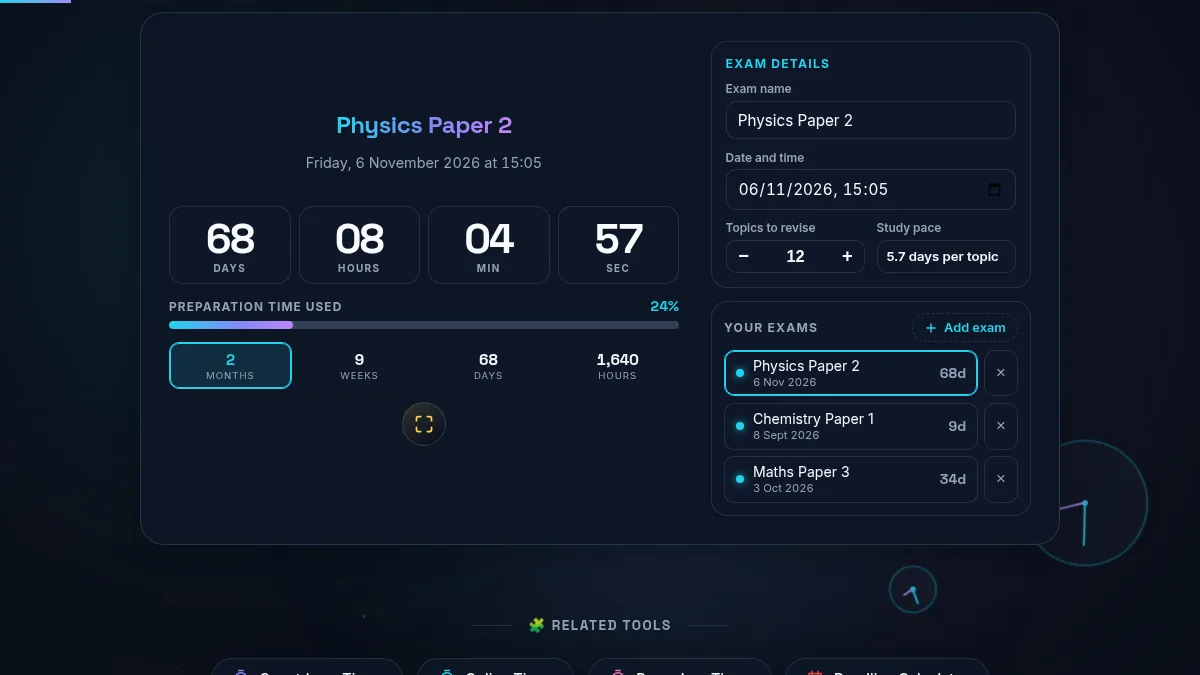
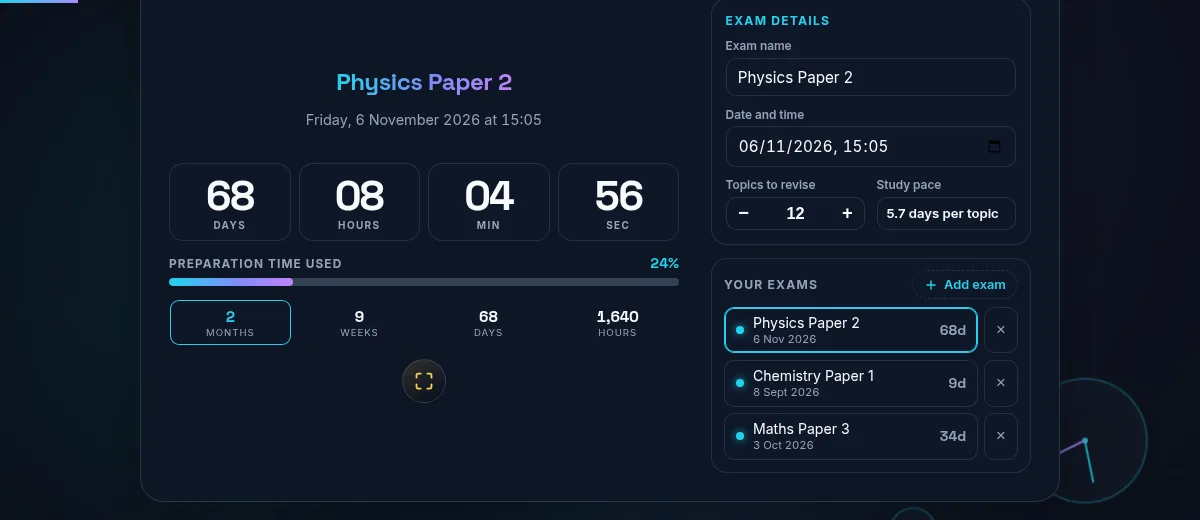
    Exam Countdown Timer workspace showing a countdown of days, hours, minutes and seconds for a paper named Physics Paper 2, a preparation progress bar, four milestone bands, and the exam details panel beside a list of saved exams
    The whole tool on one screen: the countdown and its milestone bands on the left, the exam details and your saved exams on the right.

    What the Numbers Under the Countdown Mean

    Four bands, a progress bar and a pace line, and what each one is measuring.

    The four small tiles under the progress bar restate the same remaining time in four units, because "94 days" and "13 weeks" prompt different plans even though they are the same Tuesday. All four are absolute counts of what is left, not a checklist: at three months out the tiles read 3 months, 13 weeks, 94 days and 2,256 hours at the same moment.

    One tile is highlighted, and it is always the tightest band that still applies — months while more than a month is left, weeks inside the last month, days inside the last week, hours inside the last day. That is the unit worth planning in. Watching the highlight move from weeks to days is usually the point at which a revision plan needs rewriting rather than extending.

    Preparation time used measures from the moment you added the exam to the exam itself, which is the only span the page can honestly know. It starts at zero whatever you add, because the span begins the moment you add it: a paper eight weeks out gives the bar eight weeks to cross, and one added the night before crosses the same bar in a night.

    Study pace divides the time left by the topics you still have to revise. Twelve topics and thirty days gives 2.5 days per topic. Inside the final day it switches to hours per topic, which is a more useful unit at that point and usually an uncomfortable one. It is arithmetic, not advice: it tells you what the plan currently implies, and whether that is a plan you can keep is your call.

    The Exam Countdown Timer milestone row with the months tile highlighted in cyan, reading 2 months, 9 weeks, 68 days and 1,640 hours left, beside a study pace panel showing 5.7 days per topic
    The same remaining time in four units. The highlighted tile is the tightest band that still applies — at 68 days out, months.

    How to Use the Exam Countdown Timer

    Five steps, from one blank countdown to a full exam season.

    Step 1: Name the exam

    Type the paper into the Exam name field. It appears above the countdown and in that exam's row in the list. Once three or four are saved this is what tells them apart, so "Physics Paper 2" earns its keep where "Exam 3" does not.

    Step 2: Set the date and the start time

    Use the Date and time field. The time matters more than it looks: a 09:00 start and a 14:00 start are five hours apart, and on the morning of the exam that is the difference between one revision block and none. A new exam starts 30 days out at 09:00 so there is something to see straight away; change it to the real slot on your timetable. The countdown updates as you type, with nothing to submit.

    Step 3: Enter how many topics are left

    Put the number of chapters, topics or past papers you still have to get through into Topics to revise, with the minus and plus buttons or by typing. The pace line divides the time left by that number. Lower it as you finish things and the pace loosens, which is the one number on the page that rewards you for doing the work.

    Step 4: Add the rest of the season

    Press Add exam for the next paper. Each row carries its own name, date, topic count and time left, and the list stays in the order you added them. Eight is the limit, which covers a normal exam season with room over. The on a row removes that exam; there is no undo, so it is worth reading the name first.

    Step 5: Go fullscreen while you work

    The corner button fills the screen with the exam name and the countdown and hides everything else, including the list and the settings. On a second monitor or an old laptop propped beside the desk it reads from across a room. Press it again, or Escape, to come back.

    Frequently Asked Questions

    Can I count down to more than one exam at once?

    Yes, up to eight. Press Add exam and the new paper joins the list with its own name, its own date and time, and its own topic count. Every row shows the time left to that exam, whichever one the big readout is currently showing, so you can see that Chemistry is nine days away while Physics is six weeks away without switching anything. Click a row to bring that exam into the countdown, and the name, date and topic fields follow it.

    Does the countdown keep running if I switch tabs or close the laptop?

    It does not need to. The page does not tick a number upwards; it reads the remaining time from your system clock every fifth of a second, so what it shows is worked out fresh each time rather than accumulated. Browsers throttle hidden tabs, and a countdown built the other way loses seconds every time you look away. Come back an hour later, or the next morning, and the number is already correct.

    What is the preparation bar measuring?

    It measures from the moment you added that exam to the exam itself, and fills as that stretch passes. Add a paper eight weeks out and the bar starts empty; add one the night before and it starts nearly full, because it is. It is deliberately not a measure of how much revision you have done, which the page has no way to know. The pace line underneath is the one that responds to your work: lower the topic count as you finish topics and the days per topic go up.

    Is my exam list private, and does it survive a reload?

    Both. Exam names, dates and topic counts are written to localStorage on your own device, so the list is still there after a reload, a restart or a week away, and it is never sent to a server. There is no account and no sync, which is the other side of the same coin: the list lives in that one browser on that one device. Clearing your browsing data clears it too. If you had exams saved in the previous version of this page, they are carried over the first time you open it.

    Does the Exam Countdown Timer work on a phone?

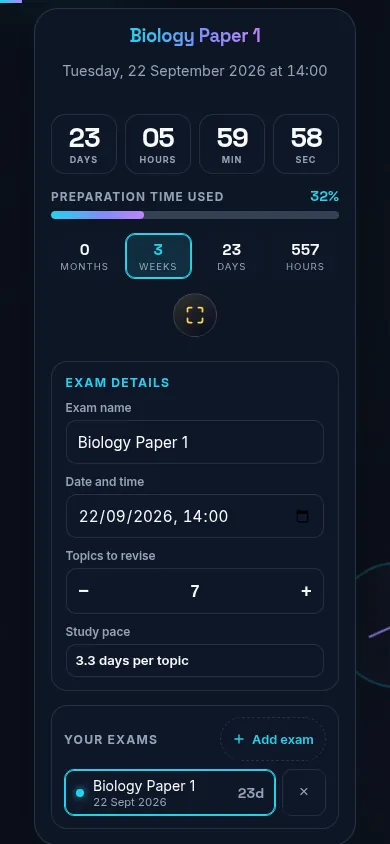
    Yes. Below 768px the two columns stack into one: the exam name, the countdown, the preparation bar and the four milestone tiles sit at the top, with the name, date and topic fields and your exam list below them. Every control is at least 44px, the date field opens the date picker your phone already uses, and fullscreen still fills the screen for a countdown you want propped up on a desk.

    Exam Countdown Timer on a 390px phone with the exam name, the days, hours, minutes and seconds countdown, the preparation bar and the four milestone tiles stacked in one column
    The Exam Countdown Timer on a phone — one column, with the name and the countdown in the first screen.

    Still have questions?

    If you can't find the answer you're looking for, feel free to contact our support team.

    Contact Us