Meeting Time Planner

One Grid, Every Zone, One Slot

100% Browser-Based Local Processing
Proposed slot

    09:00–17:00 working Early or late 22:00–06:00 asleep Click an hour on the base row to move the meeting.

    Every clock, offset and verdict is worked out in your browser from its own time-zone database. The zones and the date you choose are never uploaded or stored.

    Privacy Focused

    🔒 Local Processing. The values you enter never leave your device.

    Instant Results

    🌐 Fully Client-Side. Runs instantly in your browser.

    No Signup

    ⚡ No accounts. No API keys. Just open and use.

    Browser Based

    🚀 No installs, no sign-ups, no conversion limits.

    Meeting Time Planner: One Grid Instead Of Four Clocks

    Scheduling across time zones goes wrong in a specific way. Everyone converts their own time correctly, one person forgets that a Friday afternoon in Berlin is a Saturday morning in Auckland, and the invitation goes out anyway. The fix is not more clocks; it is putting every zone on the same axis so a single glance shows what a given moment means for everyone.

    That is what this planner does. Each zone you add becomes a row on one shared 24-hour grid, and every column of that grid is the same instant in all of them. Working hours are green, early and late hours amber, and the middle of the night grey, so the outlined column you have chosen either sits on green all the way down or visibly does not. Underneath, a verdict line counts the rows it works for.

    Two things make the answer trustworthy rather than approximate. Offsets are read for the date you are actually planning, so daylight saving is applied on the right side of a transition, and any row whose local date differs is labelled next day or previous day rather than left for you to notice. For a straight two-zone comparison the Time Zone Difference tool is quicker; for a wall of live clocks, use the World Clock.
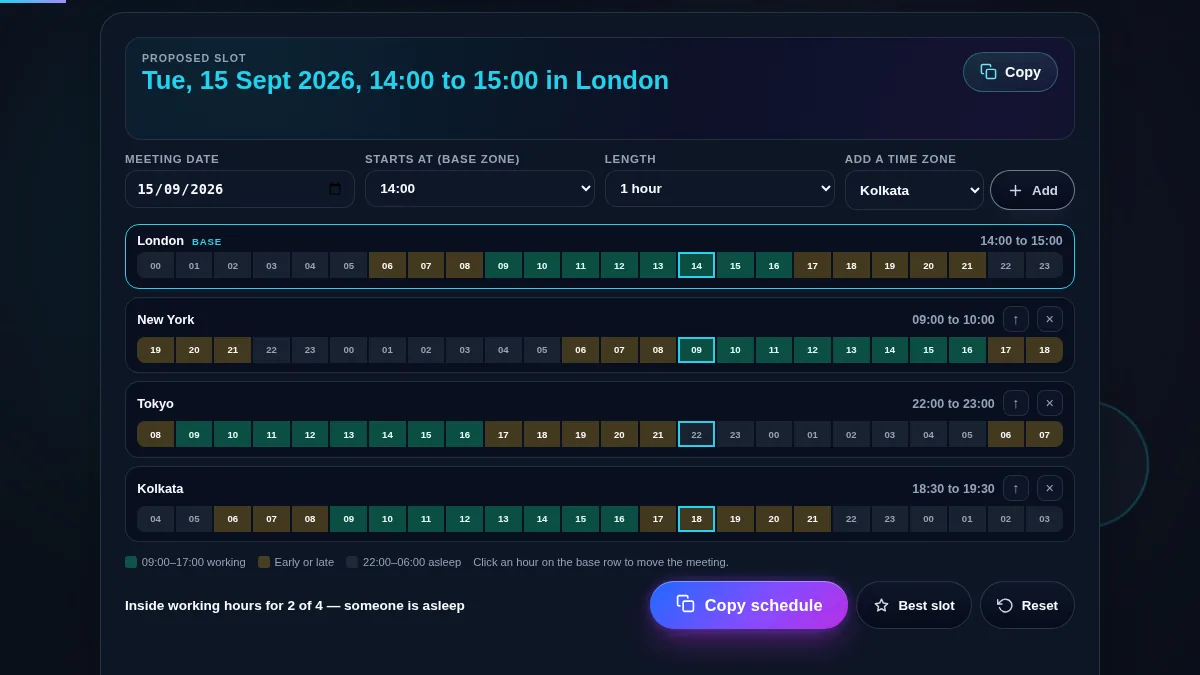
    Full meeting time planner workspace: the proposed slot sentence, the date, start hour, length and add-a-zone controls, four zone rows each with a local meeting time and a shaded 24-hour strip, the colour legend, and the verdict line with the Copy schedule, Best slot and Reset buttons
    The whole planner on one screen: setup on top, one row per zone, the verdict underneath.

    What Each Part Of The Grid Is Telling You

    ReadingWhat it tells youWhere it comes from
    The sentence at the topThe proposed slot, written in the base zone's own timeThe chosen start hour and length on the chosen date
    A rowOne participant's zone across the base zone's whole dayEach column read back in that zone from the same instant
    Green cellThat hour is between 09:00 and 17:00 locallyThe local hour the cell prints
    Amber cellEarly morning or evening: possible, but a favour06:00 to 09:00 and 17:00 to 22:00 locally
    Grey cellThe middle of the night, 22:00 to 06:00 locallyThe local hour the cell prints
    The outlined columnThe meeting itself, in every zone at onceThe start hour and the length you set
    next day on a rowThe meeting falls on the following date thereThat zone's calendar date compared with the base zone's
    The verdict lineHow many zones the whole slot is inside working hours forEvery hour of the slot checked in every row
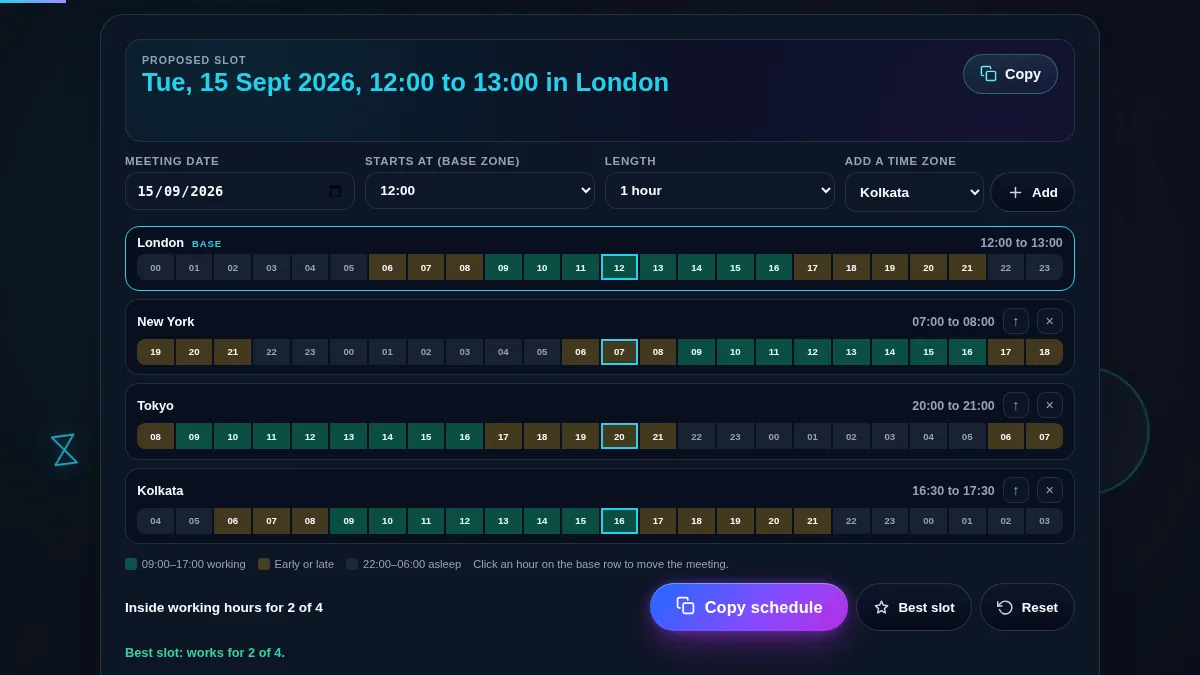
    The meeting time planner after pressing Best slot, with the chosen hour outlined down all four zone rows, green working-hours shading behind it, and the verdict line reporting how many zones the slot suits
    Best slot scans all 24 hours and moves the meeting to the one that suits the most people.

    How to Plan a Meeting Across Time Zones

    Four steps from a list of people to a schedule you can paste.

    Step 1: Add a zone for each person

    The planner opens on your own zone plus two common ones. Use the add menu for anyone else, up to eight; opening it loads the full IANA list, so any city with its own zone is there. Remove a row with the cross when someone drops off the invitation. What matters is the zone, not the person, so one row covers everybody in the same city.

    Step 2: Set the date, and plan in the right clock

    Set the date first, because the offsets that apply are the ones in force that day. The first row is the base: the date and the start hour are read as its wall clock. If you would rather think in a colleague's time, press the arrow on their row and it becomes the base without moving the meeting; only the clock you are reading it in changes.

    Step 3: Move the slot until the column is green

    Choose a start hour and a length, and the outlined column moves down every row at once. Click a cell on the base row for the same thing with a mouse. Read down the outline rather than across: a column that is green in every row is a slot nobody has to make an exception for, and one grey cell in it means somebody is being asked to take a call in the middle of the night. Best slot searches all 24 hours if you would rather not.

    Step 4: Copy the schedule into the invitation

    Copy schedule puts the whole plan on the clipboard as plain text: the date and slot in the base zone, one line per zone with its local time and any next-day marker, the verdict, and the exact starting instant in ISO 8601. Pasting that under the invitation saves everyone doing the conversion again, and the ISO line is the one a calendar or a script can be trusted with.

    Frequently Asked Questions

    How do I find a meeting time that works across time zones?

    Add a zone for each person, then move the start hour until the outlined column sits on green in as many rows as possible. Green is working hours, amber is early or late, grey is the middle of the night. The verdict line under the grid counts how many zones the slot is inside working hours for, and the Best slot button does the search for you by scanning all 24 hours.

    What does the Best slot button actually pick?

    It tries every start hour in the day and scores each one: a zone whose whole meeting falls inside 09:00 to 17:00 counts for it, a zone that would be asleep counts against it, and a small nudge favours the middle of the base zone's day when two hours tie. It then moves the meeting to the winner and tells you how many zones it suits. If nothing suits everyone, it picks the least bad hour rather than pretending one exists.

    Why does one row say next day?

    Because the meeting falls on a different calendar date there. An afternoon slot in London is the following morning in Sydney, so the Sydney row shows its local time with next day beside it. Getting the hour right and the date wrong is the classic way a cross-time-zone meeting is missed, so the marker is on the row rather than buried in a tooltip.

    Can I plan in someone else's time zone instead of my own?

    Yes. The first row is the base: the date and the start hour are read as its wall clock, and every column of the grid is an hour of its day. Press the arrow button on any other row to make that zone the base. The meeting stays at the same real moment, so nothing about the plan changes except which clock you are reading it in.

    Does it handle daylight saving?

    Yes, for the date you are planning. Each column is turned into a real instant through the base zone and then read back in every other zone, so the offsets that apply are the ones in force on that date rather than a flat number of hours. This is why a slot booked in October can look an hour different in November, and why it is worth checking the date of a recurring call.

    Is my data uploaded or stored anywhere?

    No. The zones you add, the date and the slot are all handled in your browser with JavaScript. Nothing is sent to Randomly.online, nothing is logged, and there is no account to create. The Copy schedule button puts the plan on your clipboard and nowhere else.

    Does the meeting time planner work on a phone?

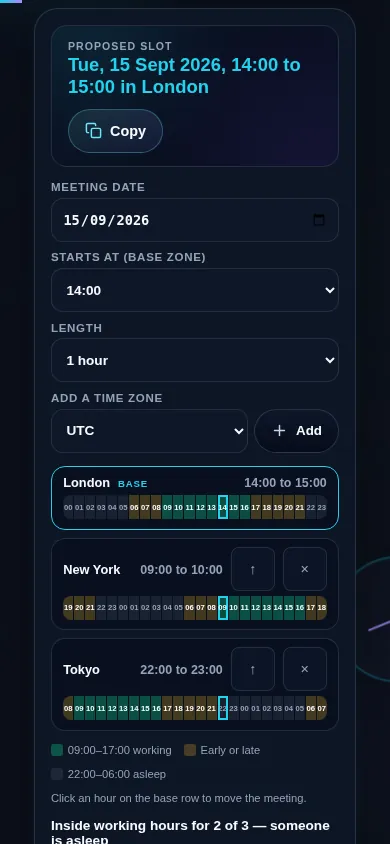
    Yes. On a narrow screen the four setup controls stack into one column and the zone rows keep their full 24-hour strips, with the cells shrinking to fit rather than scrolling sideways. Choosing the hour from the labelled Starts at menu is the reliable way to move the meeting on a touch screen; clicking a cell on the base row is a mouse shortcut.

    Meeting time planner on a 390px phone: the proposed slot sentence at the top, the date, start hour, length and add-a-zone controls stacked in one column, and the zone rows below with their 24-hour strips intact
    The meeting time planner on a phone — the controls stack, the grid stays whole.

    Still have questions?

    If you can't find the answer you're looking for, feel free to contact our support team.

    Contact Us