JSON Formatter

Beautify, validate, and explore JSON in your browser — pick the indentation, catch syntax errors, and view a tree.

100% Browser-Based Local Processing
Input JSON Valid JSON
Formatted Result

Privacy Focused

🔒 Local Processing. Your code never leaves your device.

Instant Results

🌐 Fully Client-Side. Runs instantly in your browser.

No Signup

⚡ No accounts. No API keys. Just open and use.

Browser Based

🚀 No installs, no CLI, no build step.

Format, validate, and explore JSON — privately

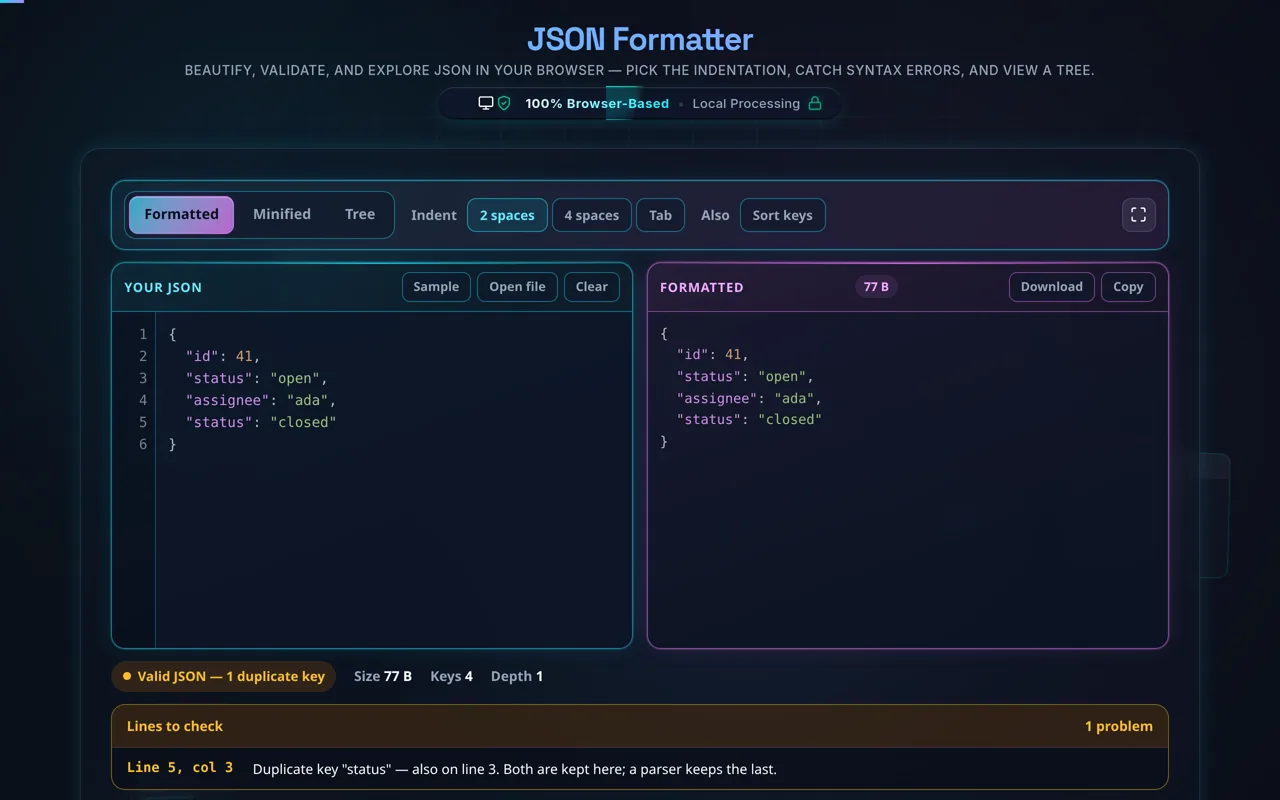
A JSON Formatter turns messy or minified JSON into clean, readable text by applying consistent indentation, and validates it against the JSON specification — flagging the first syntax error. This one runs entirely in your browser, so your JSON is never uploaded, and it works offline.

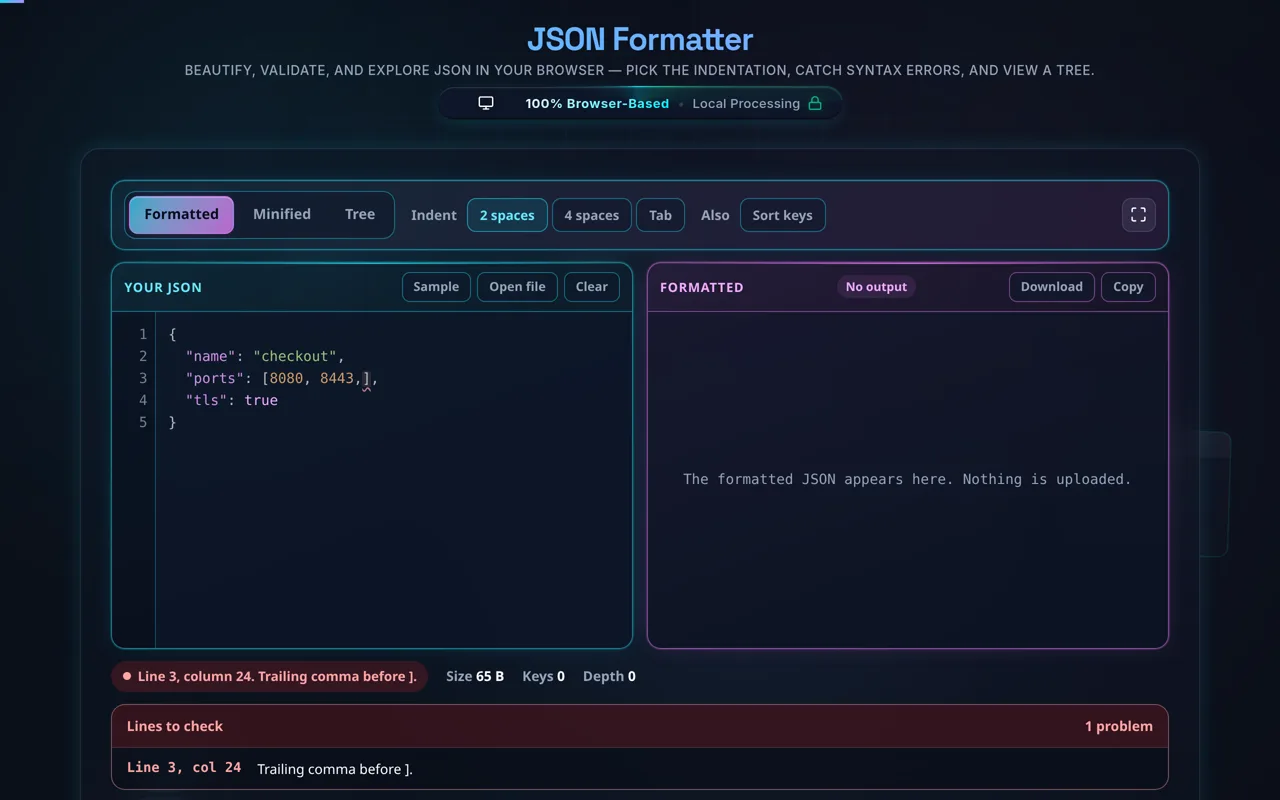
JSON is everywhere in modern development — API responses, config files, logs — but it's often delivered minified onto one line, or hand-edited into something that won't parse. A JSON formatter fixes both problems: it pretty-prints the JSON with consistent indentation so you can actually read it, and it validates it against the JSON spec, pointing you to the first syntax error with its line and column.

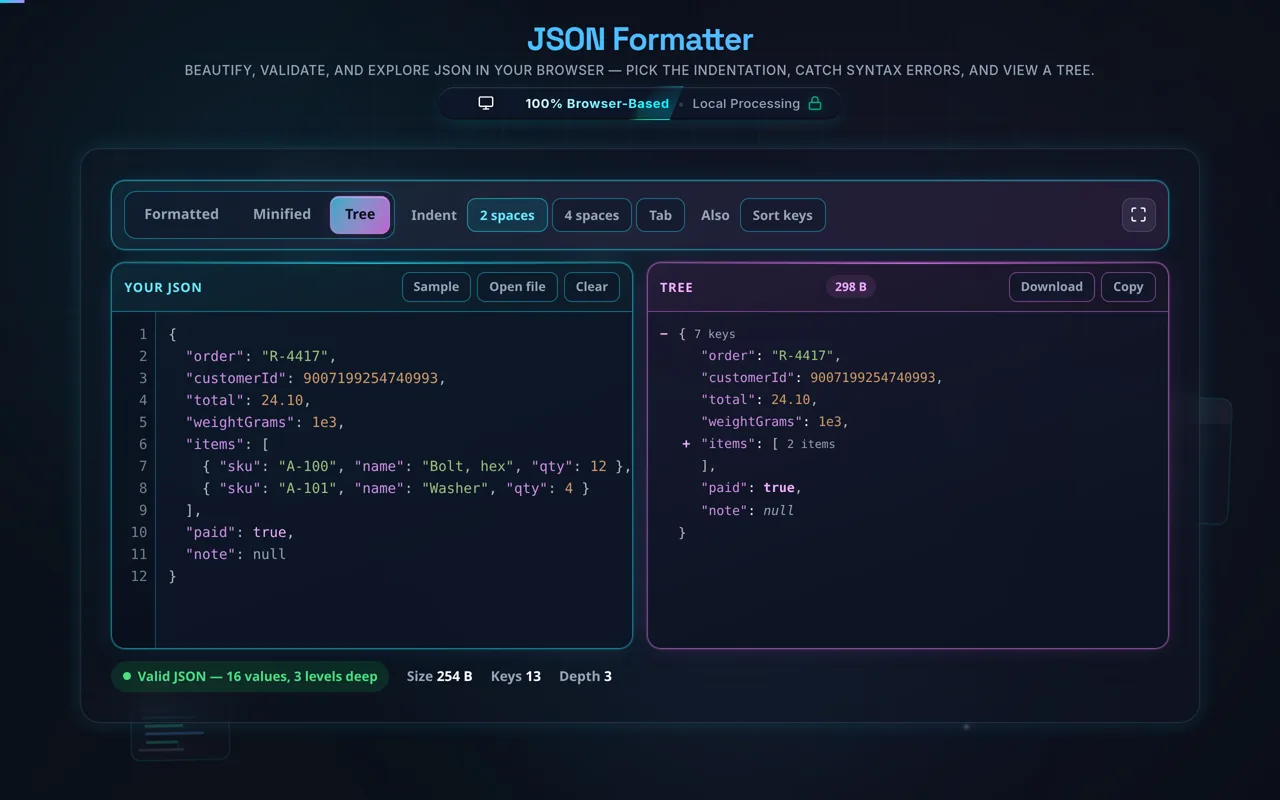
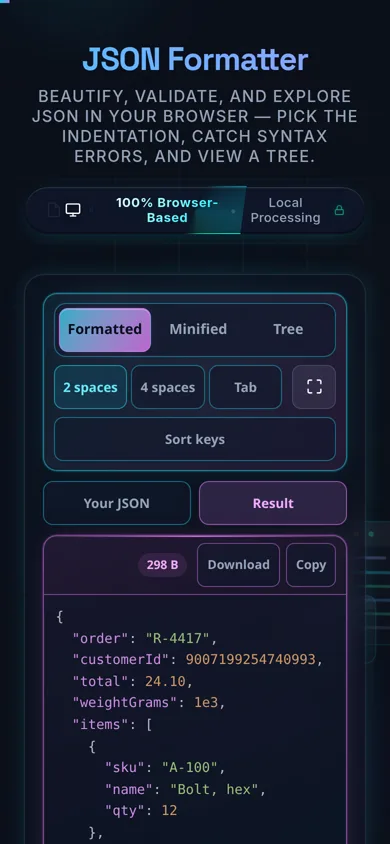
Paste your JSON or load a local file, choose your indentation (2 spaces, 4 spaces, or a tab), and the tool reformats it instantly with syntax highlighting. If something's wrong — a missing comma, an unclosed bracket, a stray quote — you get a clear message and location instead of a silent failure. A collapsible tree view lets you expand and collapse nested objects and arrays to navigate large structures, and you can minify, copy, or download the result in a click.

The thing that sets this tool apart is privacy. Everything happens in your browser using JavaScript — there's no server, no upload, no logging, and no tracking of your content. That matters because developers routinely paste sensitive JSON: internal API payloads, credentials, customer data. Here, that data never leaves your device, and the tool keeps working offline once the page has loaded. You can confirm it yourself in your browser's network tab.

A couple of honest notes. Formatting is cosmetic — it changes whitespace (and key order, if you sort keys), not the meaning of your data. And standard JSON is strict: it has no comments and no trailing commas, so if your "JSON" includes those (common in config files like JSONC), the validator will correctly flag them. This tool checks syntax, not whether your data matches a particular JSON Schema — for that, use a schema validator.

Need related tools? See the JSON Validator, JSON Minifier, and CSV to JSON.

When a JSON formatter helps

  • Reading API responses. Turn a one-line payload into something readable.
  • Debugging. Find the exact spot where invalid JSON breaks.
  • Editing config. Tidy and re-indent a hand-edited file.
  • Exploring structure. Collapse and expand deep, nested JSON.
  • Sensitive data. Format private payloads without uploading them anywhere.

How to format JSON

Paste or load your JSON

Type it, paste it, or open a local file (it's read in-browser, not uploaded).

Choose your indentation

2 spaces, 4 spaces, or a tab.

Format and validate

The tool pretty-prints valid JSON and flags the first error with its line and column.

Explore the tree

Expand and collapse nested nodes to navigate the structure.

Copy or download

Grab the formatted (or minified) output. Nothing is sent anywhere.

Realistic example

Paste {"user":{"id":1,"roles":["admin","editor"],"active":true}} and it becomes a neatly indented, colour-highlighted block you can read at a glance — and the tree view lets you collapse roles to focus on the rest.

Advanced tip

If validation complains near a comma or bracket, check for a trailing comma or a comment — both are invalid in standard JSON even though many editors allow them.

Common mistake to avoid

Don't assume a "valid-looking" file is valid JSON; single quotes, unquoted keys, and trailing commas are the usual culprits, and the error line/column will point you to them.

Related

To strip whitespace for production, use the JSON Minifier.

What to keep in mind

  • Zero-knowledge and private. All parsing and formatting run in your browser — nothing is uploaded, logged, or tracked, and it works offline.
  • Formatting is cosmetic. It changes whitespace (and key order if you sort), not your data's meaning.
  • Standard JSON is strict. No comments and no trailing commas — the validator flags them by design.
  • Syntax, not schema. It checks that JSON is well-formed, not whether it matches a JSON Schema.
  • Large files run locally. Very big JSON is limited by your device's memory and CPU, since there's no server.

Frequently Asked Questions

How do I format (beautify) JSON?

Paste your JSON into the tool (or load a local file), choose an indentation of 2 spaces, 4 spaces, or a tab, and it instantly re-indents the JSON into clean, readable, colour-highlighted text. Behind the scenes it parses your JSON and re-serialises it with consistent spacing. You can then copy or download the result — all without anything leaving your browser.

How do I validate JSON — why is my JSON invalid?

The formatter validates as it parses: if the JSON is well-formed it pretty-prints it; if not, it shows the first syntax error with its line and column. The usual causes of "invalid JSON" are a trailing comma, a missing or extra comma or bracket, single quotes instead of double, or unquoted keys. The error location points you straight to the problem.

Does this upload my JSON, and does it work offline?

No upload, and yes it works offline. All parsing, formatting, and validation happen in your browser using JavaScript — there's no server receiving your data, no logging of content, and no analytics on what you paste. That makes it safe for sensitive payloads. Once the page has loaded, it keeps working with no internet connection, and you can verify this in your browser's network tab.

Can JSON have comments or trailing commas?

No — standard JSON (per the spec) allows neither. Comments (// or /* */) and trailing commas are common in config formats like JSONC or in JavaScript objects, but they make a file invalid JSON, so the validator flags them. If you need them, they belong in JSONC or a JS file, not in data you'll parse with a strict JSON parser. Remove them and the JSON will validate.

What indentation should I use — 2 spaces, 4 spaces, or a tab?

It's a style choice. 2 spaces is the most common default for JSON and keeps files compact; 4 spaces is more spread out and readable for deeply nested data; a tab lets each viewer set their own width. None affects the data — indentation is purely cosmetic. Pick whatever matches your project's conventions, and use a minifier when you need it small for production.

What's the difference between a formatter, a validator, and a minifier?

A formatter (beautifier) adds indentation to make JSON readable; a validator checks whether JSON is well-formed and reports errors; a minifier strips whitespace to make it as small as possible. This tool formats and validates together, and can minify too. For focused jobs, see the JSON Validator and JSON Minifier.

Can I format a large JSON file?

Usually yes. Because everything runs locally, the limit is your device's memory and CPU rather than a server cap — modern browsers handle multi-megabyte JSON comfortably, though very large files (tens of MB) can get slow, especially rendering the tree view. There's no upload size limit imposed by us, and nothing is sent anywhere; it's purely a matter of local performance.

Does formatting change my data?

No — formatting only changes whitespace (indentation and line breaks), which JSON parsers ignore, so the data is identical. The one thing that can change order is if you choose to sort keys, which reorders object properties for readability without altering their values. Otherwise, the formatted output represents exactly the same object as your input.

Can I load a file instead of pasting?

Yes. You can open a local .json file, and the tool reads it directly in your browser using the FileReader API — the file's contents go into the editor without being uploaded to any server. This is handy for large files or ones you'd rather not copy and paste, and it's just as private as pasting.

Does this check my JSON against a schema?

No. It validates syntax — whether your JSON is well-formed and parseable — not whether it matches a specific JSON Schema (required fields, types, allowed values). Those are different jobs: syntax validation catches malformed JSON, while schema validation checks the shape of valid JSON against rules you define. For the latter, use a dedicated JSON Schema validator.

Can I collapse and explore nested JSON?

Yes. The tree view renders your JSON as expandable nodes, so you can collapse objects and arrays you don't care about and drill into the parts you do. This is far easier than scrolling through a huge formatted block, especially for deeply nested API responses. It's read-only navigation — your underlying JSON stays exactly as you entered it.

Is it free, and are there limits?

Yes, completely free — no payment, no signup, no account, and no usage caps or watermarks. Because the tool runs entirely in your browser, there's nothing for us to meter; the only practical limit is your own device's performance on very large files. Use it as much as you like, including offline once the page has loaded.

Still have questions?

If you can't find the answer you're looking for, feel free to contact our support team.

Contact Us