JSON to CSV Converter

Securely flatten complex nested JSON into production-ready CSV tables entirely in your browser.

100% Browser-Based Local Processing
1. Source JSON
1
2. Table Preview 0 RECORDS

Privacy Focused

🔒 Local Processing. Your code never leaves your device.

Instant Results

🌐 Fully Client-Side. Runs instantly in your browser.

No Signup

⚡ No accounts. No API keys. Just open and use.

Browser Based

🚀 No installs, no CLI, no build step.

Convert JSON to CSV — privately

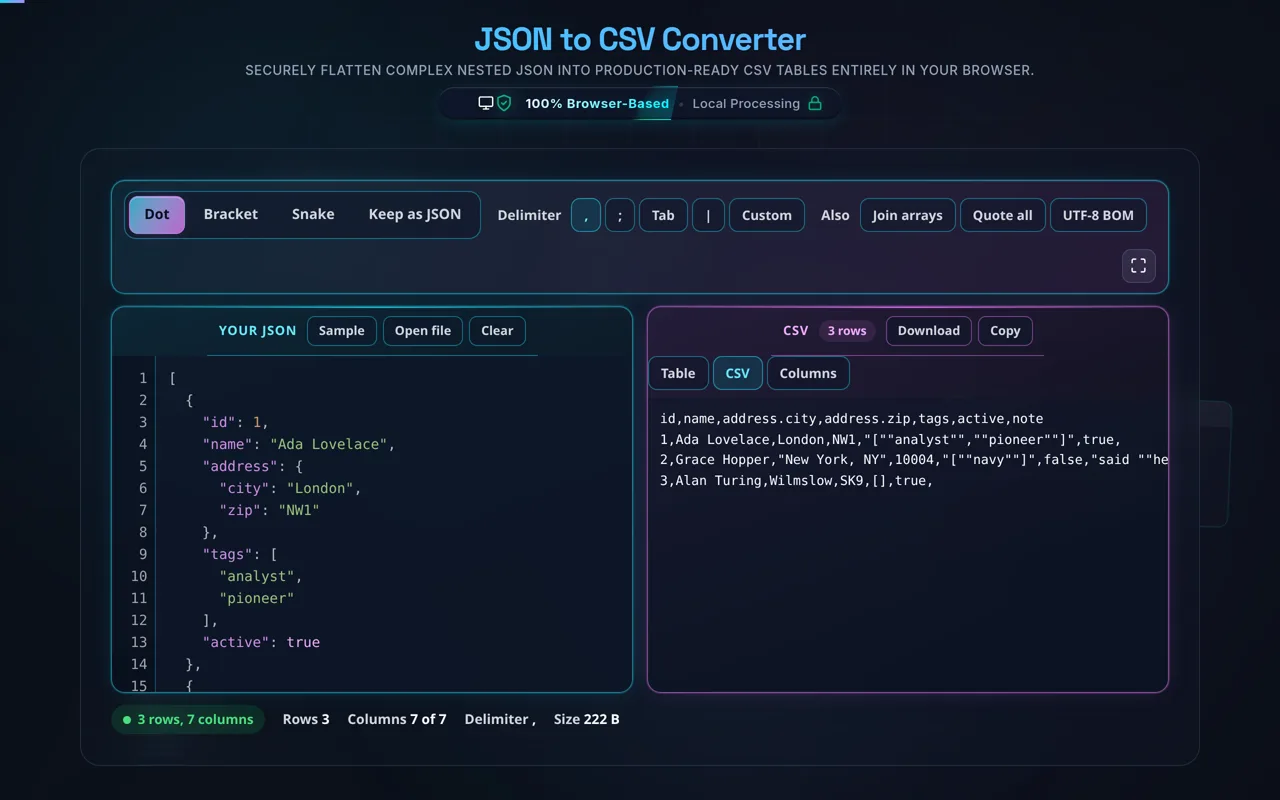
JSON to CSV converts a JSON array of objects into tabular CSV. The object keys become the header row, and each object becomes a row. This one runs entirely in your browser — your JSON is never uploaded — and it flattens nested values so they fit a table.

When you need to open API data in a spreadsheet or hand it to someone who lives in Excel, you need CSV. This converter takes a JSON array of objects and turns it into a table: the keys become the header row, and each object becomes a row, with values in the matching columns.

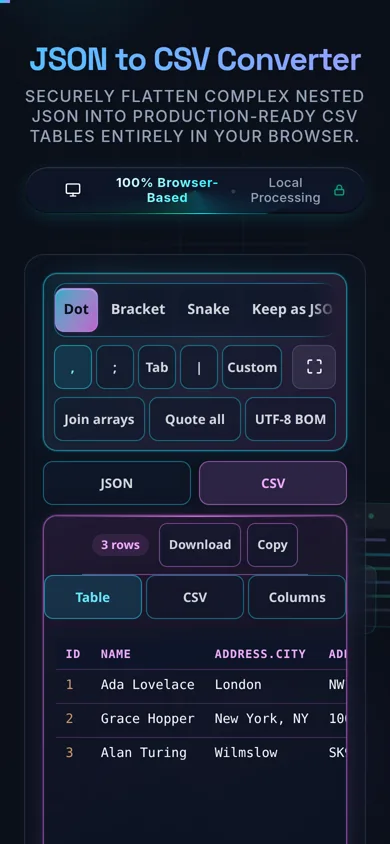
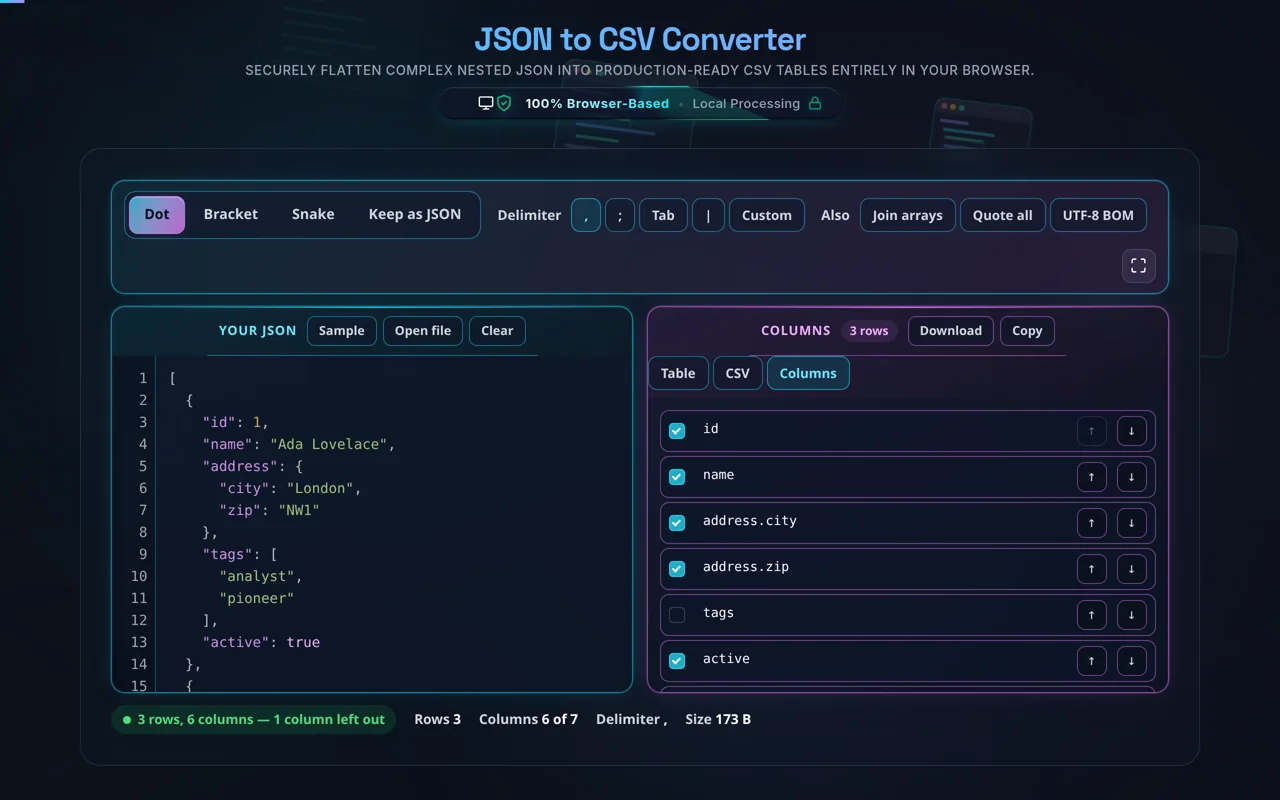
Paste your JSON or load a local file, choose your delimiter (comma, semicolon, or tab), decide how to handle nested data, and pick or reorder the columns you want. The output uses RFC 4180 quoting, so any field containing a comma, quote, or newline is safely wrapped in quotes. Copy or download the CSV, with a row/column count shown.
Privacy is the point, as always. Everything runs in your browserno server, no upload, no logging, no tracking. JSON exports often contain real records; here nothing leaves your device, and the tool works offline once loaded.

The honest part is important, because CSV is flat and JSON isn't. A table has no natural place for a nested object or an array, so the tool either flattens nested values into dot-notation columns (address.city, address.zip) or JSON-stringifies them into a single cell — your choice. Deeply nested JSON may still need manual mapping, and this flattening is a simplification, not a perfect round-trip. If your objects have different keys, the header is the union of all keys and missing fields become empty cells. Finally, watch the Excel/locale gotchas: some locales expect a semicolon delimiter, and a UTF-8 BOM can help Excel show accented characters correctly — the tool offers options for these.

For the reverse, see CSV to JSON; to inspect the input, the JSON Formatter.
When JSON to CSV helps

  • Open in a spreadsheet. Turn API data into an Excel/Sheets-friendly table.
  • Share with non-devs. Hand data to people who work in spreadsheets.
  • Reporting. Export records for analysis or a report.
  • Flatten nested data. Get dotted columns from nested JSON.
  • Sensitive records. Convert real data without uploading it.

How to convert JSON to CSV

Paste or load your JSON

An array of objects works best (read in-browser, not uploaded).

Set the delimiter

Comma, semicolon, or tab — match how you'll open the file.

Choose nested handling and columns

Flatten to dotted keys or stringify; pick/reorder columns.

Convert

The tool builds the header from the keys and one row per object.

Copy or download

Grab the CSV. Nothing is sent anywhere.

Realistic example

[{"name":"Ada","age":36},{"name":"Grace","age":45}] becomes:

Advanced tip

If a spreadsheet mangles accented text, enable the UTF-8 BOM option; if columns land in one cell, switch the delimiter to semicolon.

Common mistake to avoid

Don't expect deeply nested JSON to become a clean table — flatten or stringify it, and remember the result is a simplification.

Related

To go back, use CSV to JSON.

What to keep in mind

  • Zero-knowledge and private. Conversion runs in your browser — nothing uploaded, logged, or tracked, and it works offline.
  • CSV is flat. Nested objects/arrays are flattened to dotted columns or stringified; deeply nested JSON may need manual mapping and isn't a perfect round-trip.
  • Uneven objects. Different keys produce a union header with empty cells for missing fields.
  • Excel/locale caveats. Use a semicolon delimiter and/or UTF-8 BOM if your spreadsheet needs them.
  • Large files run locally. Very big JSON is limited by your device, since there's no server.

Frequently Asked Questions

How do I convert JSON to CSV?

Paste your JSON (or load a local file) — ideally an array of objects — choose your delimiter and nested-data handling, and the tool builds a header row from the object keys and one row per object. Nested values are flattened or stringified, and fields are quoted where needed. Then copy or download the CSV. Everything happens in your browser; nothing is uploaded.

Does this upload my JSON, and does it work offline?

No upload, and yes it works offline. All processing happens in your browser using JavaScript — there's no server receiving your data, no logging, and no tracking. That matters because JSON exports often hold real records. Once the page has loaded it keeps working with no internet connection, which you can confirm in your browser's network tab.

What JSON shape does it expect?

An array of objects works best — [{...}, {...}] — where each object is a row and its keys are the columns. That maps cleanly to a table. A single object can be treated as one row, and other shapes may need adjusting. If your JSON is one big nested object rather than a list of records, you'll usually want to point the tool at the array inside it.

How does it handle nested objects and arrays?

Since CSV is flat, nested values can't sit in a single column naturally. You get two choices: flatten them into dot-notation columns (so {"address":{"city":"NYC"}} becomes an address.city column), or JSON-stringify the nested value into one cell. Flattening is cleaner for shallow nesting; stringifying keeps complex structures in a single field. Deeply nested JSON may still need manual mapping.

What if my objects have different keys?

The tool builds the header from the union of all keys across your objects, so every field that appears anywhere gets a column. Where an object doesn't have a particular key, that cell is left empty. This keeps the table complete and rectangular even when your records aren't perfectly uniform — a common situation with real-world JSON.

My CSV won't open right in Excel — why?

Usually a locale or encoding issue. Some locales (and Excel installs) expect a semicolon delimiter rather than a comma, so switch the delimiter to match. Accented or non-Latin characters can look wrong unless the file has a UTF-8 BOM — enable that option if needed. And very large files may open slowly. These are Excel/CSV quirks, not errors in the conversion itself.

Can I choose the delimiter (semicolon, tab)?

Yes. Pick comma, semicolon, or tab to match how you'll open the file. Comma is standard CSV; semicolon suits many European locales where the comma is a decimal separator; tab (TSV) avoids delimiter clashes with commas in your data. Whatever you choose, fields containing that delimiter are automatically quoted so the structure stays intact.

Can I pick or reorder which columns to export?

Yes. You can select which keys become columns and set their order, rather than exporting every field in whatever order it appears. This is handy for producing a clean report with just the columns you care about, in a sensible sequence. Deselected keys are simply omitted from the CSV.

Does it quote fields with commas or newlines?

Yes. The output follows RFC 4180: any field containing the delimiter, a double quote, or a newline is wrapped in double quotes, and quotes inside a field are escaped by doubling them (""). This ensures your CSV parses correctly even when values contain commas or line breaks — the same standard the CSV to JSON tool reads.

Can I load a JSON file instead of pasting?

Yes. You can open a local .json file and the tool reads it directly in your browser with the FileReader API — the contents load into the editor without being uploaded anywhere. This is ideal for larger exports or ones you'd rather not copy and paste, and it's exactly as private as pasting the JSON by hand.

Can it handle large JSON?

Usually yes. Because it runs locally, the limit is your device's memory and CPU rather than a server cap, and modern browsers handle arrays with tens of thousands of objects well. Very large files (hundreds of MB) can be slow or hit memory limits, since everything is in-browser — but nothing is uploaded, and there's no server-imposed size cap.

Is it free, and are there limits?

Yes, completely free — no payment, no signup, no account, and no usage caps or watermarks. Since everything runs in your browser, there's nothing for us to meter; the only practical limit is your device's performance on very large files. Use it as much as you like, including offline once the page has loaded.

Still have questions?

If you can't find the answer you're looking for, feel free to contact our support team.

Contact Us