HTML Minifier

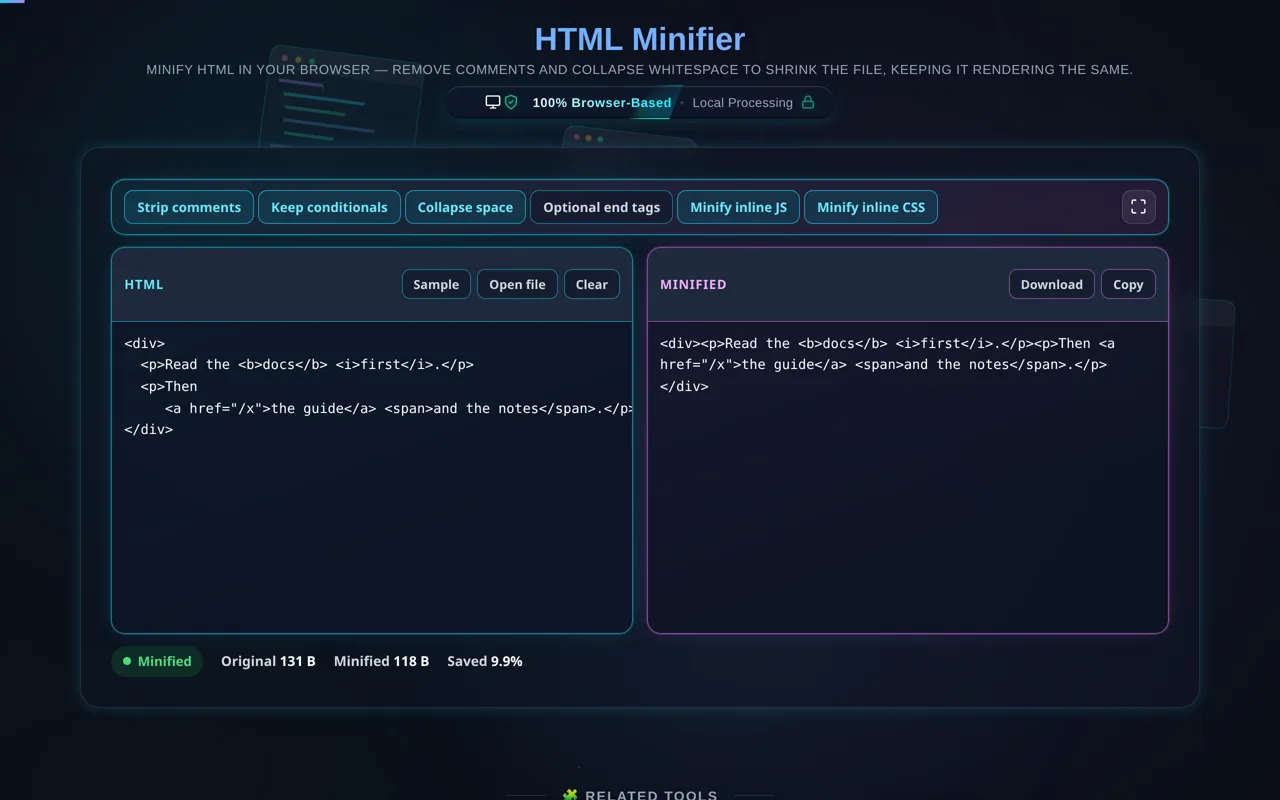
Minify HTML in your browser — remove comments and collapse whitespace to shrink the file, keeping it rendering the same.

100% Browser-Based Local Processing

Compress HTML code instantly. Remove comments, collapse whitespace, and minimize inline scripts to speed up your website's load time securely in your browser.

Raw HTML Input Awaiting Input
Minified Output Ready
Original: 0 B
Minified: 0 B
Saved: 0%

Privacy Focused

🔒 Local Processing. Your code never leaves your device.

Instant Results

🌐 Fully Client-Side. Runs instantly in your browser.

No Signup

⚡ No accounts. No API keys. Just open and use.

Browser Based

🚀 No installs, no CLI, no build step.

Shrink your HTML — carefully and privately

An HTML Minifier shrinks an HTML file by removing comments and collapsing insignificant whitespace, while keeping it rendering the same. This one runs entirely in your browser — your HTML is never uploaded — and it preserves whitespace-sensitive tags like <pre> and <script>, showing how many bytes you save.

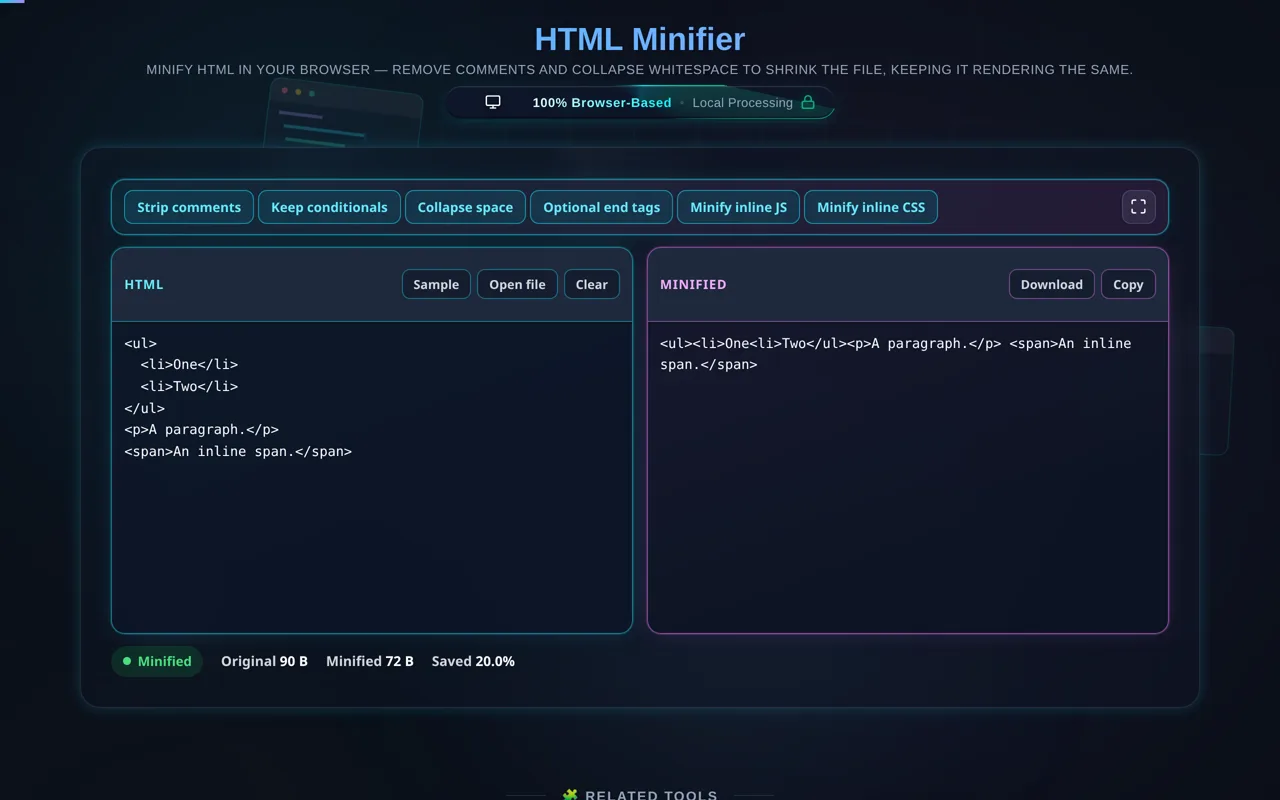
Smaller HTML means faster page loads and less bandwidth. An HTML minifier reduces file size by removing comments and collapsing runs of whitespace (indentation and line breaks between tags) that the browser doesn't need — without changing what the page renders.

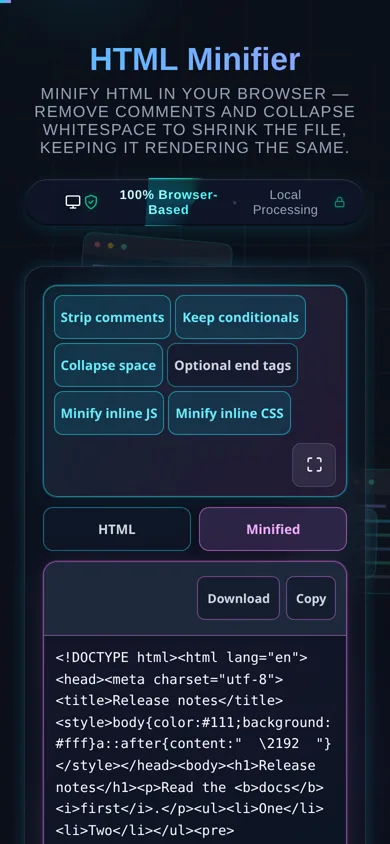
Paste your HTML or load a local file, choose your options (remove comments, collapse whitespace, optionally keep conditional comments), and the tool minifies it and shows the size before and after with the percentage saved. Crucially, it preserves the contents of whitespace-sensitive tags<pre>, <textarea>, <script>, and <style> — and is conservative around inline content, so the visual result stays the same. Copy, download, or flip back to beautify whenever you like.

Privacy is central. Minifying happens in your browserno server, no upload, no logging, no tracking. You can minify proprietary templates and internal markup without any of it leaving your device, and the tool works offline once loaded.
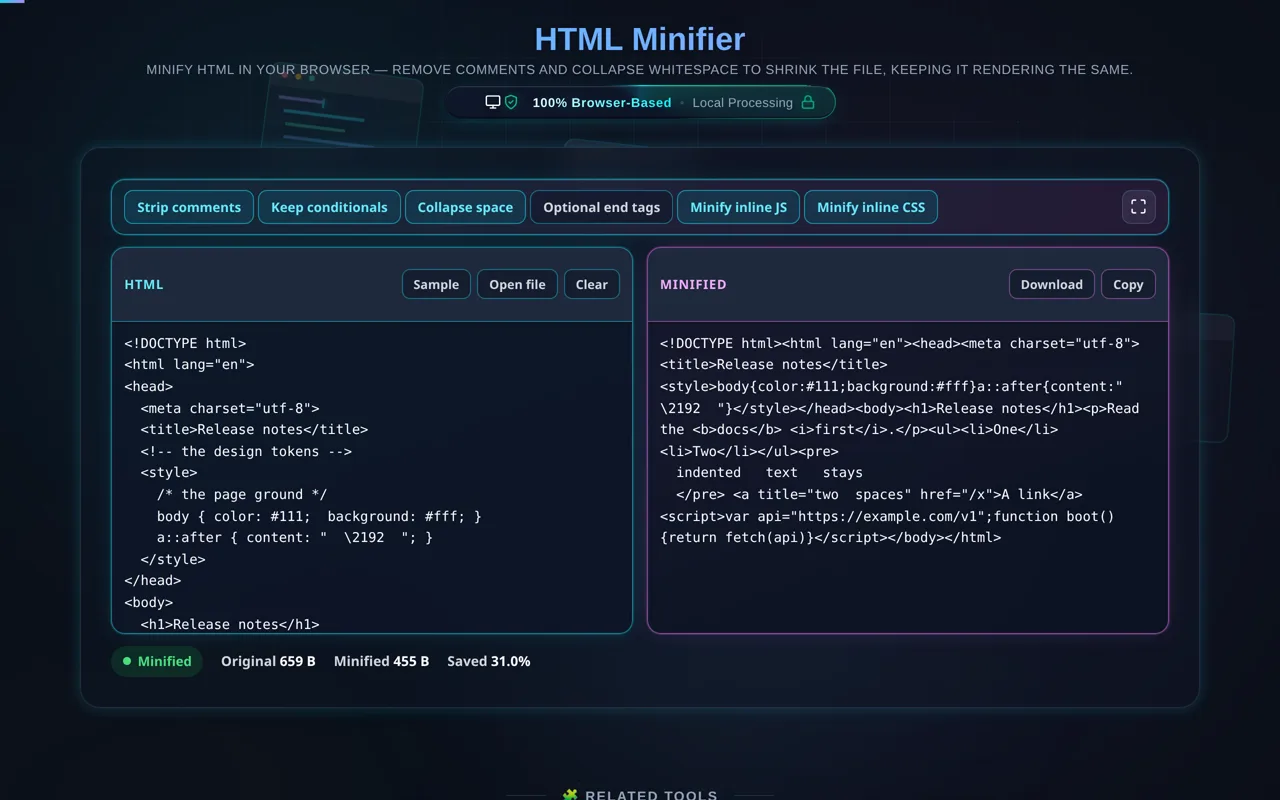
Now the important honesty. Unlike JSON, HTML whitespace can be significant: the space between inline elements like <a>, <span>, or <img> often affects visible spacing. A minifier that collapses it too aggressively can subtly change your layout. This tool is conservative, but you should still test the minified output on your page before shipping. Also, it's a minifier, not a bundler or deep optimiser — it won't inline assets, aggressively minify embedded JS/CSS, or tree-shake. And for transport, server compression (gzip/brotli) usually saves more than HTML minification alone, though the two stack.

For the reverse, see the HTML Formatter; for stylesheets and scripts, the CSS Minifier and JavaScript Minifier.
When an HTML minifier helps

  • Faster pages. Trim markup for quicker loads.
  • Email HTML. Shrink bulky, table-heavy email templates.
  • Embeds & snippets. Compact HTML stored inline or in a CMS.
  • Bandwidth. Reduce transfer where compression isn't applied.
  • Sensitive templates. Minify internal markup without uploading it.

How to minify HTML

Paste or load your HTML

Type it, paste it, or open a local file (read in-browser, not uploaded).

Choose options

Remove comments, collapse whitespace, and optionally keep conditional comments.

Minify

The tool shrinks the HTML and preserves whitespace-sensitive tags.

Check the size saved

See bytes before/after and the percentage.

Test, then copy or download

Verify the page still renders correctly, then grab the output. Nothing is sent anywhere.

Realistic example

A commented, nicely-indented 40 KB page might minify to around 30 KB — roughly a quarter smaller — before any server compression. The tool shows the exact saving for your file.

Advanced tip

Combine minification with gzip/brotli on your server for the smallest transfer; minifying alone helps most where compression isn't available.

Common mistake to avoid

Don't assume collapsing whitespace is always safe — check spacing between inline elements after minifying, especially in layouts that rely on it.

Related

To read minified HTML again, use the HTML Formatter.

What to keep in mind

  • Zero-knowledge and private. Minifying runs in your browser — nothing uploaded, logged, or tracked, and it works offline.
  • HTML whitespace can be significant. Collapsing space between inline elements can change spacing — the tool is conservative, but test the output.
  • Whitespace-sensitive tags preserved. <pre>, <textarea>, <script>, and <style> content is kept intact.
  • Not a bundler/optimiser. It won't inline assets or deeply minify embedded JS/CSS.
  • Gzip usually saves more. For transport, server compression beats minifying alone — but they stack.

Frequently Asked Questions

How do I minify HTML?

Paste your HTML (or load a local file), choose your options — remove comments, collapse whitespace — and the tool shrinks the markup while preserving whitespace-sensitive tags. It shows the size before and after so you can see the saving. Then test the result and copy or download it. Everything happens in your browser; nothing is uploaded.

Does minifying change how my page looks?

It shouldn't, if done carefully — and this tool is conservative. It removes comments and collapses whitespace the browser ignores, and preserves whitespace-sensitive tags. But HTML whitespace between inline elements can be meaningful, so aggressive collapsing elsewhere could shift spacing. That's why you should test the minified page before shipping. In most cases the rendered result is identical.

Does this upload my HTML, and does it work offline?

No upload, and yes it works offline. All processing happens in your browser using JavaScript — there's no server receiving your markup, no logging, and no tracking. That makes it safe for proprietary templates. Once the page has loaded it keeps working with no internet connection, which you can confirm in your browser's network tab.

What does minifying HTML actually remove?

Mainly two things: comments (<!-- ... -->, optionally keeping conditional ones) and insignificant whitespace — the indentation and line breaks between tags that don't affect rendering. It doesn't remove content, attributes, or tags, so the page's structure and meaning are unchanged. The result is the same HTML, just with the non-essential characters stripped out.

Does it preserve `<pre>`, `<script>`, and `<style>`?

Yes. Those are whitespace- or code-sensitive: collapsing whitespace inside <pre> or <textarea> would change what's displayed, and touching the JavaScript or CSS inside <script>/<style> could break it. The minifier leaves their contents intact and only trims the surrounding markup. If you want to deeply minify the CSS or JS itself, use the dedicated CSS or JavaScript minifier.

How much smaller does minifying HTML make it?

It depends on how many comments and how much whitespace the file has. Well-commented, indented HTML often shrinks by roughly 10–30% before any server compression. Minimal HTML saves little. The tool reports the exact bytes and percentage for your file. Remember that gzip/brotli on your server usually saves more on top of this.

What's the difference between minifying and gzip?

Minifying removes comments and whitespace from the HTML text itself. Gzip/brotli is compression your server applies during transfer, which removes redundancy far more aggressively. For network transport, gzip usually saves more than minifying alone — but they stack, so minify then compress for the smallest transfer. Minifying is most valuable where compression isn't applied, or to keep files lean by default.

Can minifying break my HTML spacing?

It can, if whitespace between inline elements is collapsed where your layout depends on it — for example, a space between two <a> links or inline <span>s. This tool is conservative to avoid that, but HTML's whitespace rules are subtle, so the safe practice is to test the minified output on your actual page. If spacing shifts, adjust your options or add explicit spacing in CSS.

Can I reverse it — beautify the HTML again?

Yes. Minifying removes comments and collapses whitespace, so you can re-indent it into readable markup at any time with the beautify option or the dedicated HTML Formatter. Note that beautifying re-indents from scratch and can't recover comments that minification removed — so keep your original source if you need those.

Can I load a file instead of pasting?

Yes. You can open a local .html file and the tool reads it directly in your browser with the FileReader API — the contents load into the editor without being uploaded anywhere. This is handy for larger files or ones you'd rather not copy and paste, and it's exactly as private as pasting the markup by hand.

Can it minify very large HTML?

Usually yes. Because it runs locally, the limit is your device's memory and CPU rather than a server cap, and modern browsers handle large documents well. Very large files (with huge inline scripts, say) can be slow, but there's no upload size limit from us and nothing is sent anywhere — it's purely a matter of local performance.

Is it free, and are there limits?

Yes, completely free — no payment, no signup, no account, and no usage caps or watermarks. Since everything runs in your browser, there's nothing for us to meter; the only practical limit is your device's performance on very large files. Use it as much as you like, including offline once the page has loaded.

Still have questions?

If you can't find the answer you're looking for, feel free to contact our support team.

Contact Us