HTML Formatter & Validator

Beautify and indent messy or minified HTML in your browser — clean nesting, your choice of indentation.

100% Browser-Based Local Processing
Raw HTML Input
1
Valid HTML
1

Privacy Focused

🔒 Local Processing. Your code never leaves your device.

Instant Results

🌐 Fully Client-Side. Runs instantly in your browser.

No Signup

⚡ No accounts. No API keys. Just open and use.

Browser Based

🚀 No installs, no CLI, no build step.

Beautify your HTML — cleanly and privately

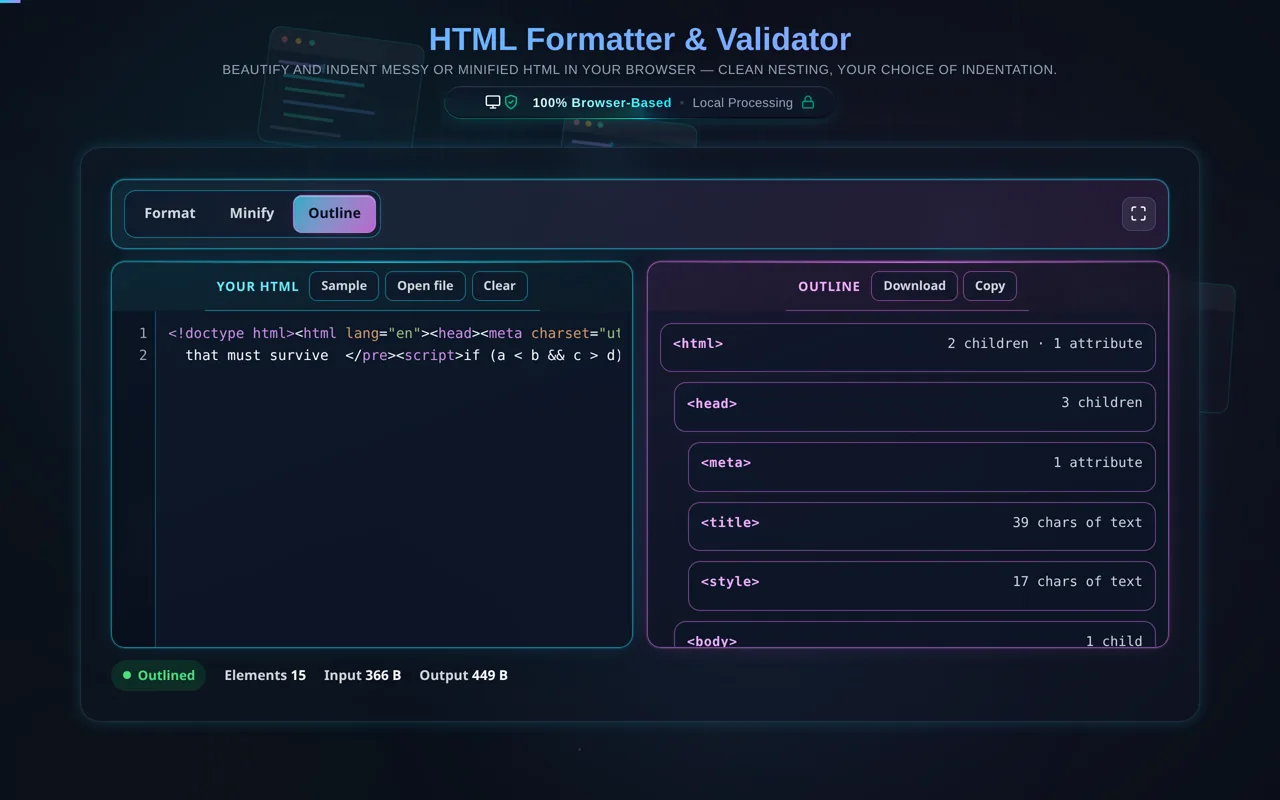
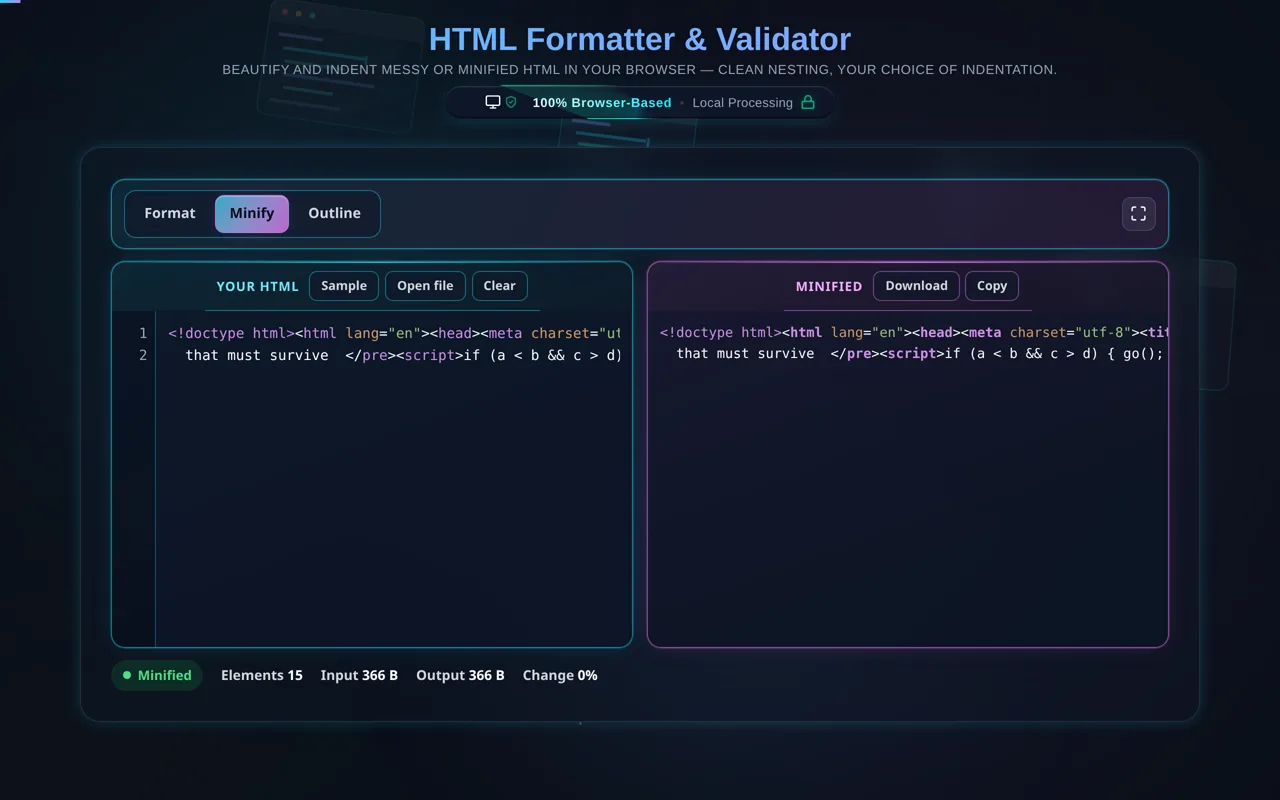
An HTML Formatter re-indents messy or minified HTML according to its nesting depth, adding consistent line breaks and spacing so the structure is readable. This one runs entirely in your browser — your HTML is never uploaded — and it preserves whitespace-sensitive tags like <pre> and <script>.

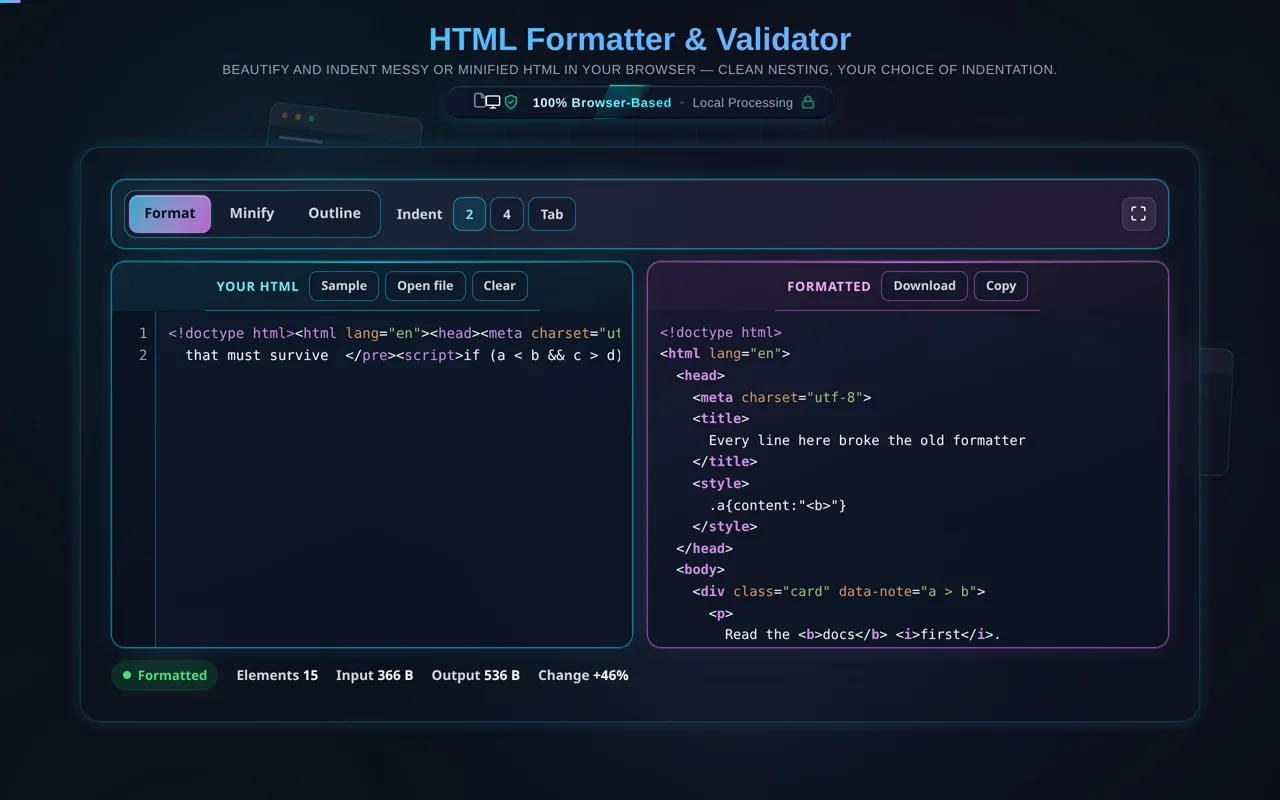
Whether you've copied markup from "View Source", exported a minified template, or hand-edited a messy file, an HTML formatter makes it readable again. It re-indents your HTML so each element sits at the right depth for its nesting, adds sensible line breaks, and highlights the syntax — turning a wall of tags into a clear, browsable structure.

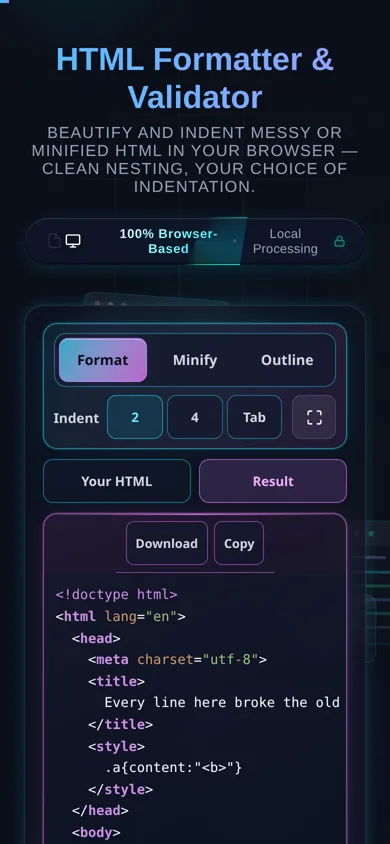
Paste your HTML or load a local file, pick your indentation (2 spaces, 4 spaces, or a tab), and the tool reformats it instantly. It handles void elements correctly (<img>, <br>, <input>, <meta>, <link> don't get a spurious closing indent), and it preserves the contents of whitespace-sensitive tags<pre>, <textarea>, and the code inside <script> and <style> — so beautifying never changes how your page actually renders. When you're done, copy or download the result, or flip to minify.
As with every tool here, privacy is the point. All formatting happens in your browser — there's no server, no upload, no logging, and no tracking of your markup. Developers paste proprietary page source, internal templates, and email HTML; here that content never leaves your device, and the tool keeps working offline once loaded.

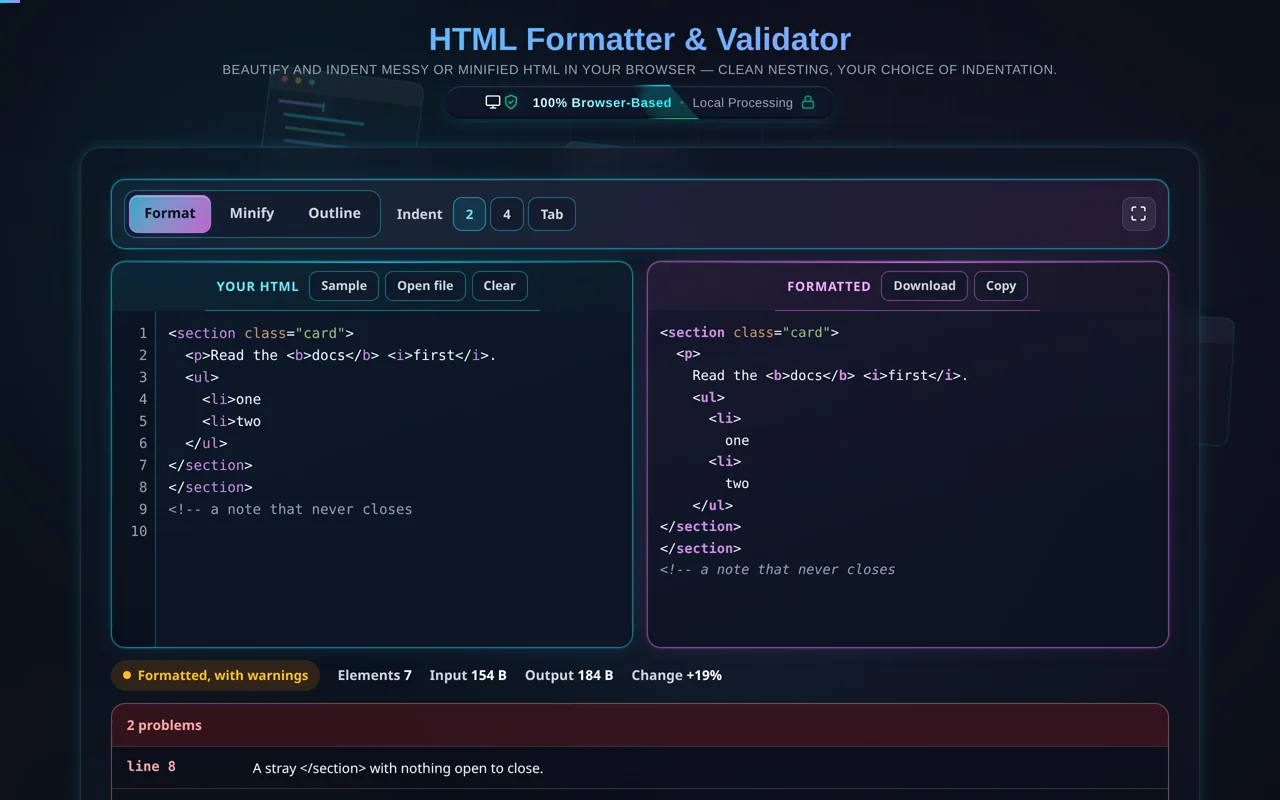
Two honest notes. First, formatting is purely cosmetic: it changes whitespace and indentation, not what the browser renders. Second, this is a beautifier, not a validator or linter — it won't check accessibility, flag standards violations, or "repair" fundamentally broken markup; it lays out whatever you give it as cleanly as it can.

For the reverse, see the HTML Minifier; to convert markup to Markdown, HTML to Markdown; and for stylesheets and scripts, the CSS Formatter and JavaScript Formatter.
When an HTML formatter helps

  • Reading source. Turn minified or "View Source" HTML into readable markup.
  • Cleaning templates. Re-indent a messy or exported template.
  • Email HTML. Make table-heavy email markup navigable.
  • Learning. See a page's structure clearly by nesting.
  • Sensitive markup. Format internal templates without uploading them.

How to format HTML

Paste or load your HTML

Type it, paste it, or open a local file (read in-browser, not uploaded).

Choose your indentation

2 spaces, 4 spaces, or a tab.

Format

The tool re-indents by nesting depth and highlights the syntax.

Check preserved tags

Content inside <pre>, <script>, and <style> is kept intact.

Copy or download

Grab the formatted (or minified) output. Nothing is sent anywhere.

Realistic example

Paste a one-line <ul><li>One</li><li>Two</li></ul> and it becomes a tidy, indented list with each <li> on its own line, nested under the <ul> — much easier to scan and edit.

Advanced tip

If a chunk of your HTML "shouldn't" be reflowed — like preformatted text or an inline code sample — keep it in <pre> and the formatter will leave its whitespace alone.

Common mistake to avoid

Don't rely on a formatter to fix broken markup; it lays out what you give it. Use a validator to catch unclosed tags or structural errors.

Related

To shrink HTML for production, use the HTML Minifier.

What to keep in mind

  • Zero-knowledge and private. Formatting runs in your browser — nothing is uploaded, logged, or tracked, and it works offline.
  • Cosmetic only. It changes indentation and whitespace, not how your page renders.
  • Whitespace-sensitive tags preserved. <pre>, <textarea>, <script>, and <style> content is kept intact.
  • A beautifier, not a validator. It won't check accessibility or standards, or repair broken markup.
  • Large files run locally. Very big HTML is limited by your device, since there's no server.

Frequently Asked Questions

How do I beautify or format HTML?

Paste your HTML (or load a local file), choose an indentation of 2 spaces, 4 spaces, or a tab, and the tool re-indents the markup according to its nesting depth, adding line breaks and highlighting the syntax. A cramped or minified block becomes a clean, readable structure you can scan and edit. Then copy or download the result — nothing leaves your browser.

Does this upload my HTML, and does it work offline?

No upload, and yes it works offline. All formatting happens in your browser using JavaScript — there's no server receiving your markup, no logging, and no tracking of your content. That makes it safe for proprietary page source, internal templates, and email HTML. Once the page has loaded it keeps working with no internet connection, which you can confirm in your browser's network tab.

Does formatting change how my page renders?

No. Formatting only adjusts whitespace and indentation, which browsers ignore between block-level elements, so the rendered page is unchanged. The tool is careful to preserve content where whitespace does matter — inside <pre>, <textarea>, <script>, and <style> — so beautifying is safe. Your markup means exactly the same thing before and after; it's just laid out more clearly.

What indentation should I use?

It's a style choice. 2 spaces keeps files compact and is a common front-end default; 4 spaces is more spread out and can be easier to read for deeply nested markup; a tab lets each editor set its own width. Indentation is purely cosmetic and doesn't affect rendering, so pick whatever matches your project's or team's conventions.

Does it preserve `<pre>`, `<script>`, and `<style>`?

Yes. Those are whitespace- or code-sensitive: reflowing the text inside <pre> or <textarea> would change what's displayed, and reindenting JavaScript or CSS inside <script>/<style> could break or at least alter it. The formatter keeps their contents intact and only indents the surrounding structure. If you want to beautify the CSS or JS itself, use the dedicated CSS or JavaScript formatter.

What's the difference between formatting and minifying HTML?

Formatting (beautifying) adds indentation and line breaks to make HTML readable; minifying removes them, plus comments and redundant spaces, to make the file as small as possible for faster loading. You beautify while developing and minify for production. This tool beautifies, and can minify too — or use the dedicated HTML Minifier for the reverse.

Can it fix or validate broken HTML?

No — it's a beautifier, not a validator or linter. It lays out the markup you give it as cleanly as it can, but it won't flag unclosed tags, accessibility issues, or standards violations, and it can't "repair" fundamentally broken structure. For those checks, use an HTML validator. Think of this tool as making readable HTML more readable, not as a correctness checker.

Can I format HTML from "View Source" or an email?

Yes — those are ideal cases. "View Source" and exported email HTML are often minified or awkwardly wrapped, and this formatter re-indents them into a clear, navigable structure. Email HTML in particular is table-heavy and hard to read; beautifying it makes the nesting obvious. Just paste it in and format — and because it's private, you can do this with internal or client markup safely.

Can I load an HTML file instead of pasting?

Yes. You can open a local .html file and the tool reads it directly in your browser with the FileReader API — the contents load into the editor without being uploaded anywhere. This is convenient for larger files or ones you'd rather not copy and paste, and it's exactly as private as pasting the markup by hand.

Does it handle void elements like `<img>` and `<br>`?

Yes. Void (self-closing) elements — <img>, <br>, <hr>, <input>, <meta>, <link> — have no closing tag and no children, so the formatter indents them correctly without adding a spurious nested level. This keeps the output accurate to how HTML actually nests, rather than mis-indenting everything after an image or line break.

Can it format very large HTML?

Usually yes. Because it runs locally, the limit is your device's memory and CPU rather than a server cap, and modern browsers handle large documents well. Very large files (many megabytes, or with huge inline scripts) can get slow, but there's no upload size limit from us and nothing is sent anywhere — it's purely a matter of local performance.

Is it free, and are there limits?

Yes, completely free — no payment, no signup, no account, and no usage caps or watermarks. Since everything runs in your browser, there's nothing for us to meter; the only practical limit is your device's performance on very large documents. Use it as much as you like, including offline once the page has loaded.

Still have questions?

If you can't find the answer you're looking for, feel free to contact our support team.

Contact Us