Advanced HTML to Markdown Converter: The Developer's Blueprint

Convert HTML to clean Markdown in your browser — headings, links, lists, code, and tables mapped to Markdown.

100% Browser-Based Local Processing
HTML Input ● Live Parser Active
Markdown Output 0 characters

In the modern landscape of digital content creation, the HTML to Markdown Converter has emerged as an indispensable utility for developers, technical writers, and documentation specialists alike. Markdown's lightweight syntax provides a level of readability and portability that raw HTML simply cannot match. Our tool is engineered specifically to bridge the gap between complex web markup and the streamlined world of Markdown documentation. By employing a deterministic parsing engine, we ensure that every semantic element of your HTML—ranging from nested lists to multi-layered blockquotes—is translated with 100% structural fidelity. This allows you to migrate legacy blog posts, extract content from existing web pages, or simply clean up automated exports into a format that is ready for GitHub, Jekyll, or any modern static site generator.

One of the primary advantages of our converter is its commitment to "Privacy by Design." Unlike many online tools that transmit your data to a remote server for processing, our converter executes entirely within your browser's client-side environment. This means your sensitive code snippets, internal documentation, or personal drafts never leave your device. The conversion logic is built upon modern DOM parsing APIs, allowing it to handle massive blocks of HTML without the interface lag common in legacy regex-based converters. Furthermore, the real-time feedback loop ensures that as you paste or edit your HTML, the resulting Markdown is immediately visible, providing a sandbox-like experience for fine-tuning your content's structure. Whether you are dealing with JSON documentation or standard web articles, our tool preserves the integrity of your information while drastically reducing the time spent on manual reformatting.

How to Master HTML to Markdown Conversion

Mastering the art of content transformation begins with understanding the workflow of our HTML to Markdown Converter. The interface is purposefully designed with a dual-pane architecture to maximize developer productivity. To start, simply paste your source HTML into the left-hand editor. You will notice that the system immediately begins parsing the document object model (DOM). This isn't a simple text replacement; it's a structural analysis that identifies elements like <h1> through <h6> and maps them to the appropriate number of '#' symbols in Markdown. If your source contains complex nested lists, our engine recursively traverses the tree to ensure that indentation levels remain accurate in the output, preventing the common "flattening" issue found in inferior tools. For developers working with code snippets, the converter automatically detects <pre> and <code> blocks, wrapping them in triple backticks for clean, language-agnostic display.

To further refine your output, consider the context of your final platform. If you are preparing content for a GitHub repository, you may want to ensure that your tables are correctly translated into GFM (GitHub Flavored Markdown) syntax. Our converter handles standard HTML tables with precision, mapping rows and cells into the pipe-and-dash format used by most modern Markdown parsers. Additionally, we've integrated contextual links for other vital developer tasks. For instance, if you find your source HTML is messy, you might first pass it through our HTML Formatter before converting it here. Once the conversion is complete, use the "Copy Markdown" button for instant clipboard access or "Download .md" for local file storage. This streamlined workflow eliminates the friction usually associated with content migration, allowing you to focus on the quality of your writing rather than the minutiae of syntax formatting.

Is this HTML to Markdown converter secure for sensitive data?

Security and privacy are the cornerstones of the Randomly.online developer suite. We recognize that developers often work with proprietary code, internal business logic, or sensitive user-facing documentation that should never be exposed to third-party servers. To address this, our HTML to Markdown converter operates on a strictly client-side architecture. When you paste your HTML into our editor, the data resides only in your browser's local memory (RAM). There are zero API calls made to any backend server for the purpose of conversion. The transformation logic is written in highly optimized JavaScript that runs locally on your CPU. This "zero-transmission" policy ensures that your data is invisible to search engines, our web servers, and any potential malicious intermediaries. This level of security makes it the ideal choice for corporate developers who must adhere to strict data protection regulations like GDPR or CCPA while performing routine JavaScript formatting or content conversion tasks.

Beyond the absence of data transmission, we also ensure that no persistent traces are left on your local machine unless you explicitly choose to save your work. We do not use persistent cookies to store your input data, and the state of your workspace is cleared upon refreshing the page or closing the tab. This ephemeral nature of the tool provides a "clean room" environment for every session. Even when utilizing related tools like our Base64 Encoder/Decoder, the same rigorous security standards apply. You can audit the network activity in your browser's developer tools at any time to verify that no content is being sent outbound. In an era where "free" online tools often monetize user data, our commitment is to provide high-quality, professional-grade utilities that respect the fundamental right to privacy for every member of the global developer community.

What happens to complex HTML elements like tables or nested lists?

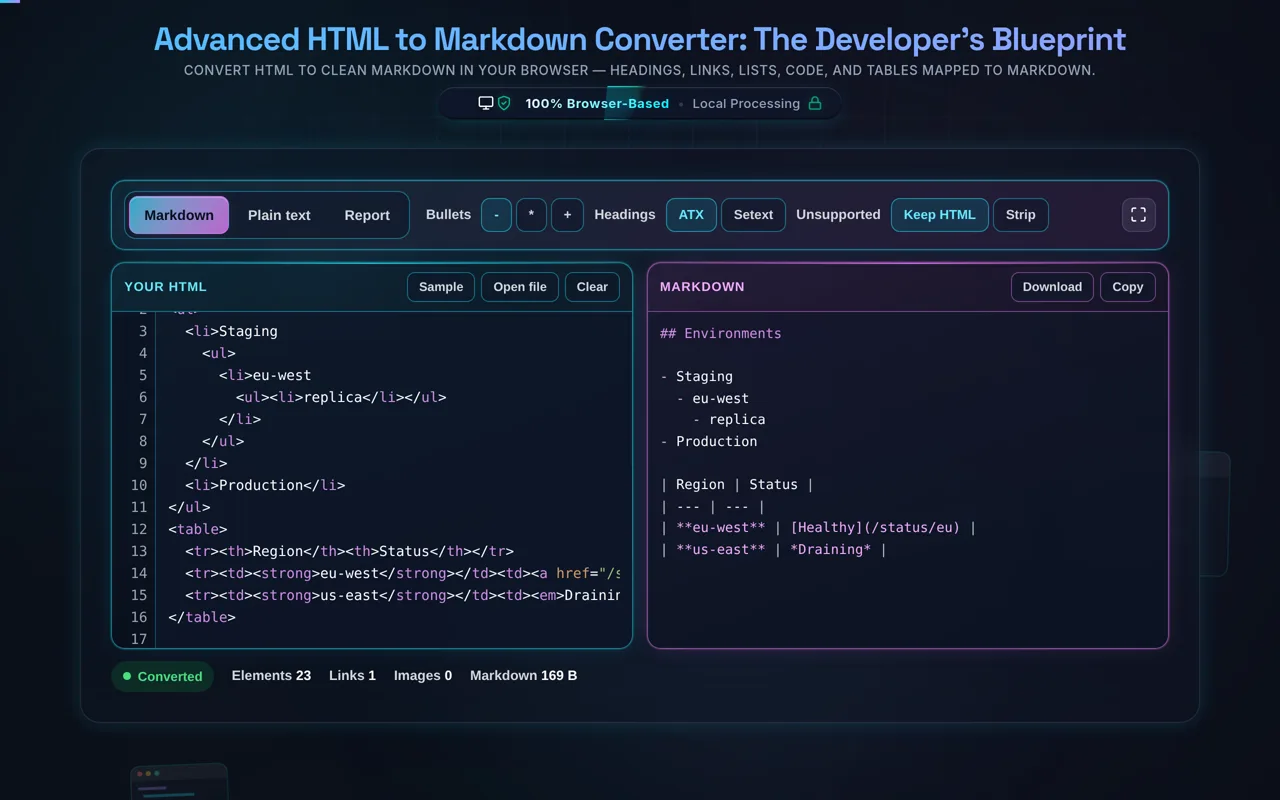
One of the most significant challenges in HTML to Markdown conversion is the handling of non-linear or deeply nested elements. Many basic converters fail when they encounter <div> soup or heavily nested unordered lists. Our engine, however, utilizes a recursive tree-walking algorithm. When the parser encounters a <ul> or <ol>, it doesn't just look for <li> children; it recursively looks for further lists within those items, maintaining a depth counter to apply the correct amount of space-based indentation in the resulting Markdown. This ensures that your document hierarchy is preserved, making it fully compatible with tools like Pandoc or static site generators. Tables are handled with equal care; our parser extracts headers (<th>) and data cells (<td>) to construct the pipe-and-dash table structure favored by GitHub and GitLab. If a cell contains further HTML formatting like bold or italic tags, those are seamlessly converted into their Markdown equivalents within the table grid.

Furthermore, we understand that HTML often contains semantic tags that don't have a direct 1:1 Markdown equivalent, such as <section>, <article>, or <span>. Our converter employs a "pass-through" strategy for these elements: it extracts the inner content while discarding the wrapper tag if it doesn't contribute to the visual structure, thereby cleaning up the "noise" often found in WordPress or CMS-exported HTML. Images (<img>) and hyperlinks (<a>) are mapped precisely, including alt text and title attributes where available. For those working with diverse media types, you might also find our Image to Base64 tool useful for embedding assets directly. By treating the HTML as a living DOM rather than just a string of text, we provide a robust conversion that handles the complexities of modern web markup while producing the cleanest possible Markdown output for your next project.

Privacy Focused

🔒 Local Processing. Your code never leaves your device.

Instant Results

🌐 Fully Client-Side. Runs instantly in your browser.

No Signup

⚡ No accounts. No API keys. Just open and use.

Browser Based

🚀 No installs, no CLI, no build step.

Convert HTML to Markdown — privately

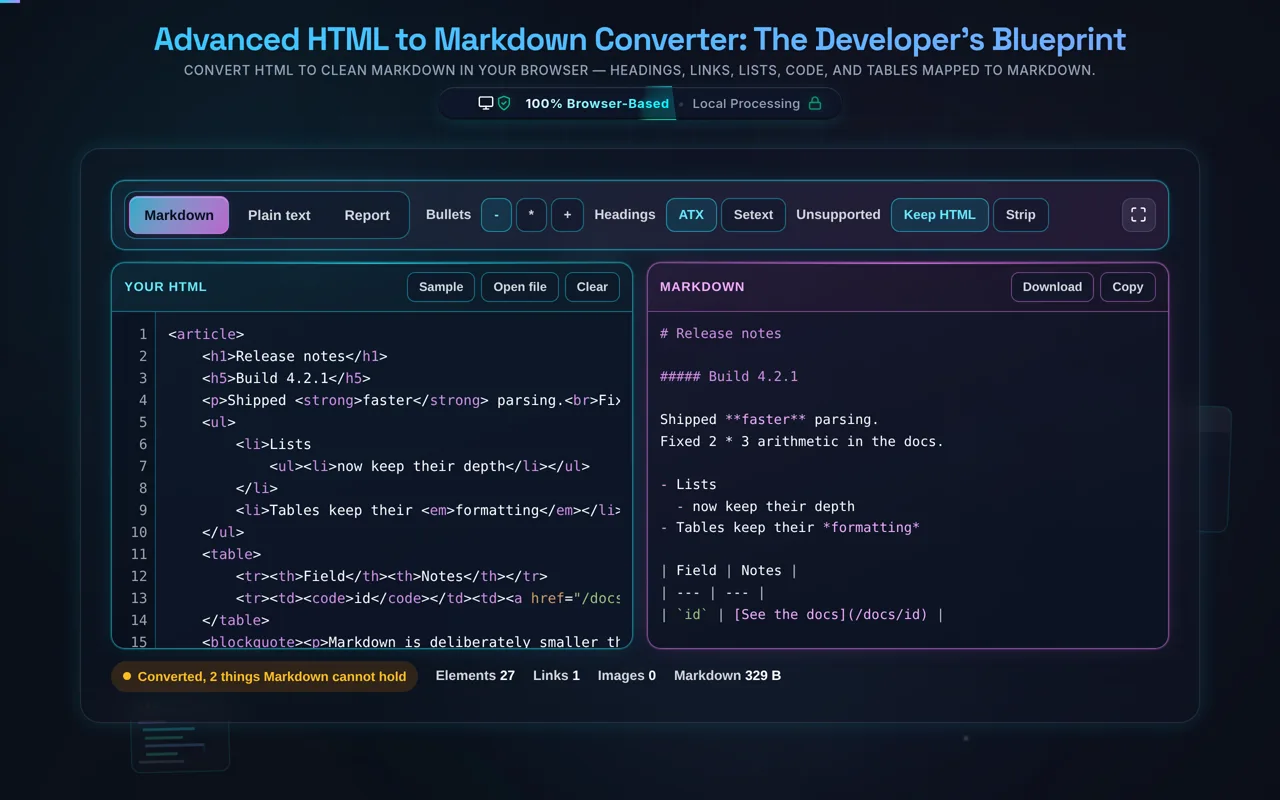
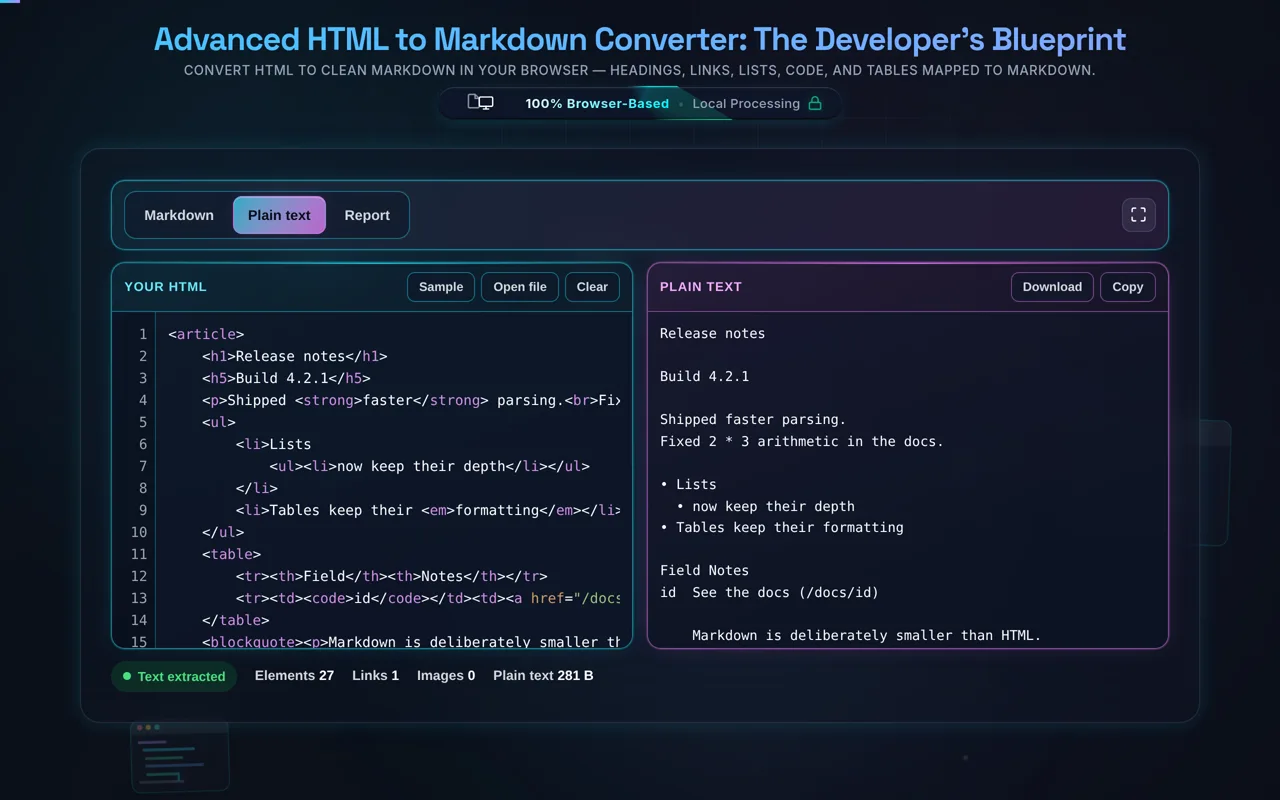
HTML to Markdown converts HTML into clean Markdown by mapping each element to its Markdown equivalent — headings to #, <strong> to **, <a> to text, lists, blockquotes, code, and tables. This one runs entirely in your browser, so your HTML is never uploaded.

Migrating content from a CMS, a rich-text editor, or a web page into Markdown by hand is tedious. This converter does it for you: it reads your HTML and emits clean Markdown, mapping each element to the right syntax — headings become # through ######, <strong>/<b> become bold, <em>/<i> become *italic*, <a> becomes text, <img> becomes !alt, lists become -/1., <blockquote> becomes >, code becomes inline or fenced, and tables become GitHub-Flavored Markdown tables.

Paste your HTML or load a local file, tweak the options (ATX # vs setext headings, - vs * bullets, code-fence style, and whether to keep or strip unsupported HTML), and the tool produces Markdown you can copy, download, or preview live.

Privacy is the point. Everything runs in your browserno server, no upload, no logging, no tracking. Content teams paste draft articles, internal docs, and email HTML; here none of it leaves your device, and the tool works offline once loaded.

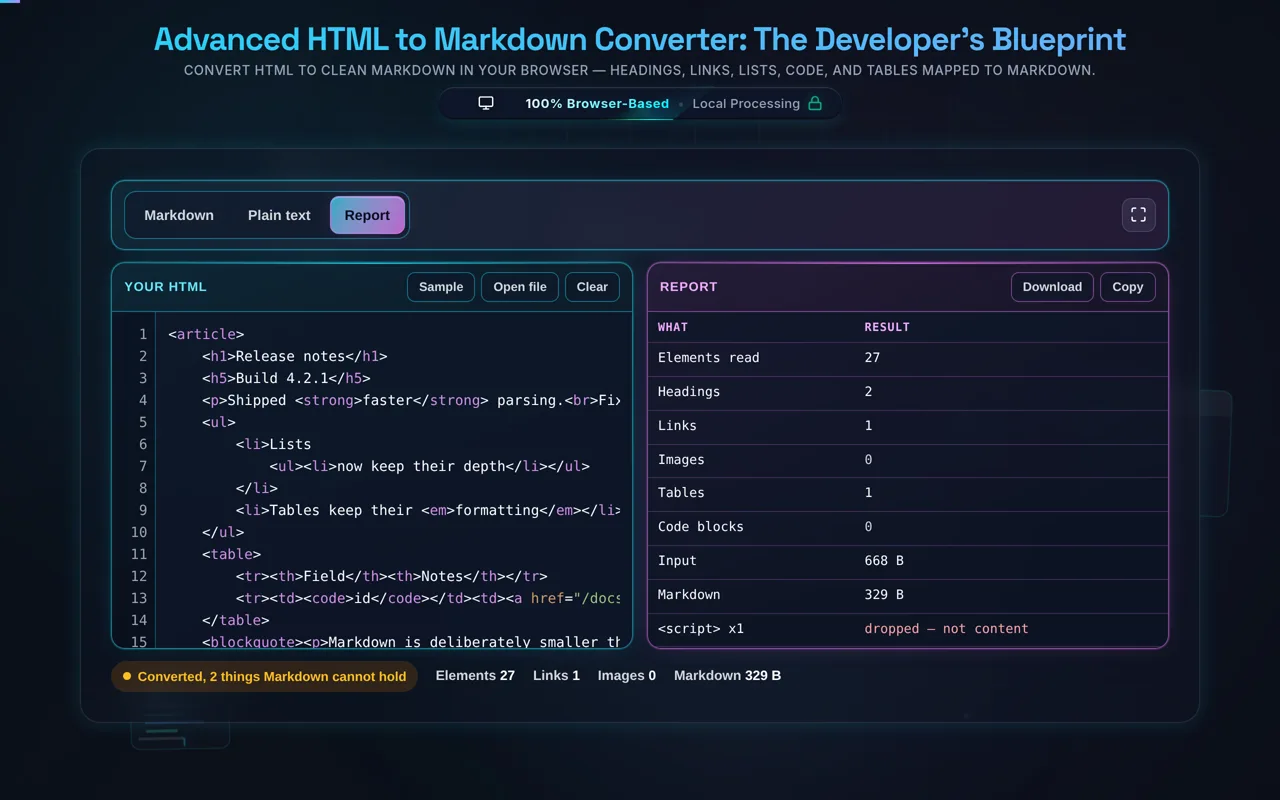
The honest part matters: Markdown is intentionally simpler than HTML, so the conversion is not a lossless round-trip. HTML can express layout and styling that Markdown has no syntax for — <div>/<span> wrappers, inline CSS, classes, and complex positioning are simplified or dropped. Complex tables (merged or nested cells) don't map to GFM tables and will be simplified. And the cleaner your input HTML, the cleaner the Markdown — messy markup produces messier output. For anything Markdown can't represent, you can keep it as inline HTML (Markdown allows raw HTML) or strip it.

For the reverse, see Markdown to HTML; to tidy the HTML first, the HTML Formatter.
When HTML to Markdown helps

  • Content migration. Move CMS or blog posts into Markdown.
  • Docs. Convert HTML docs to Markdown for a static site or repo.
  • Notes. Turn a web page or email into Markdown notes.
  • README. Get GitHub-friendly Markdown from HTML.
  • Sensitive drafts. Convert internal content without uploading it.

How to convert HTML to Markdown

Paste or load your HTML

Type it, paste it, or open a local file (read in-browser, not uploaded).

Set your options

Heading style, bullet marker, code-fence style, keep or strip unsupported HTML.

Convert

The tool maps elements to Markdown, including GFM tables.

Preview

Check the Markdown renders as you expect.

Copy or download

Grab the Markdown. Nothing is sent anywhere.

Realistic example

<h1>Title</h1><p>Some <strong>bold</strong> text and a <a href="/x">link</a>.</p> becomes # Title then Some bold text and a link.

Advanced tip

For content headed to GitHub or a static-site generator, use ATX (#) headings and fenced code blocks — the most widely supported styles.

Common mistake to avoid

Don't expect pixel-perfect fidelity — Markdown drops styling and complex layout by design. Keep the original HTML if you need it.

Related

To go back, use Markdown to HTML.

What to keep in mind

  • Zero-knowledge and private. Conversion runs in your browser — nothing uploaded, logged, or tracked, and it works offline.
  • Markdown is simpler than HTML. Not a lossless round-trip — <div>/<span>, inline CSS, classes, and complex layout are simplified or dropped.
  • Tables are GFM. Simple tables convert; merged/nested-cell tables don't translate cleanly.
  • Output tracks input quality. Clean HTML gives clean Markdown; messy HTML gives messier Markdown.
  • Unsupported elements. Keep them as inline HTML (Markdown allows it) or strip them, your choice.

Frequently Asked Questions

How do I convert HTML to Markdown?

Paste your HTML (or load a local file), set your options, and the tool walks the HTML and emits the matching Markdown — headings, bold/italic, links, images, lists, blockquotes, code, and tables. You get clean Markdown you can preview, copy, or download. Everything happens in your browser; nothing is uploaded.

Does this upload my HTML, and does it work offline?

No upload, and yes it works offline. All conversion happens in your browser using JavaScript — there's no server receiving your content, no logging, and no tracking. That matters for draft articles and internal docs. Once the page has loaded it keeps working with no internet connection, which you can confirm in your browser's network tab.

Which HTML elements convert to Markdown?

The common ones map directly: <h1><h6> to #######, <strong>/<b> to bold, <em>/<i> to *italic*, <a> to text, <img> to !alt, <ul>/<ol>/<li> to bullet or numbered lists, <blockquote> to >, <code>/<pre> to inline or fenced code, and <hr> to a rule. Tables map to GitHub-Flavored Markdown tables. Elements without a Markdown equivalent are kept as inline HTML or stripped.

Can it convert HTML tables to Markdown?

Simple tables, yes — they convert to GitHub-Flavored Markdown (GFM) tables, with a header row and pipe-separated cells. However, GFM tables are basic: they can't represent merged cells (colspan/rowspan), nested tables, or block content inside cells. Those complex tables are simplified, and the result may not match the original exactly. For simple tabular data, the conversion is clean.

Is the conversion lossless?

No — and it can't be. Markdown is deliberately simpler than HTML, so anything HTML can express that Markdown can't (styling, layout, arbitrary attributes) is lost or simplified in the conversion. You'll get faithful Markdown for structural content — headings, text, links, lists, code — but not a byte-for-byte round-trip. Keep your original HTML if you need to preserve everything.

What happens to `<div>`, `<span>`, and inline CSS?

Markdown has no equivalent for layout wrappers or styling, so <div> and <span> are generally unwrapped (their text content is kept) and inline CSS, classes, and IDs are dropped. This is by design — Markdown focuses on content structure, not presentation. If a wrapper carried meaning you need, you can choose to keep unsupported HTML inline rather than strip it.

Can I choose heading style or bullet markers?

Yes. You can pick ATX headings (# Title, the most common and widely supported) or setext (underlined) for h1/h2, and choose your bullet marker (-, *, or +) and code-fence style. Matching your target — GitHub, a static-site generator, or a docs tool — keeps the Markdown consistent with your project's conventions.

What about elements Markdown doesn't support?

You have two choices for those. Keep them as inline HTML — Markdown permits raw HTML, so the element passes through and still renders in most Markdown processors — or strip them so the output is pure Markdown. Which is better depends on your target: keep HTML for fidelity, strip it for clean, portable Markdown. The option is yours.

Can I convert a whole blog post or email?

Yes. Paste the full HTML of a blog post, documentation page, or email, and the tool converts the whole thing at once. It's a common use for migrating content into a Markdown-based CMS, static site, or repo. Just remember that styling and complex layout won't carry over — you'll get the content structure as clean Markdown.

Can I load an HTML file instead of pasting?

Yes. You can open a local .html file and the tool reads it directly in your browser with the FileReader API — the contents load into the editor without being uploaded anywhere. This is handy for larger pages or ones you'd rather not copy and paste, and it's exactly as private as pasting the markup by hand.

Can it handle large HTML?

Usually yes. Because it runs locally, the limit is your device's memory and CPU rather than a server cap, and modern browsers handle large documents well. Very large or deeply nested HTML can be slow to convert, but there's no upload size limit from us and nothing is sent anywhere — it's purely a matter of local performance.

Is it free, and are there limits?

Yes, completely free — no payment, no signup, no account, and no usage caps or watermarks. Since everything runs in your browser, there's nothing for us to meter; the only practical limit is your device's performance on very large documents. Use it as much as you like, including offline once the page has loaded.

Still have questions?

If you can't find the answer you're looking for, feel free to contact our support team.

Contact Us