Markdown to HTML Converter

Professional Markdown to HTML converter for developers.

100% Browser-Based Local Processing

Markdown Input

● Ready

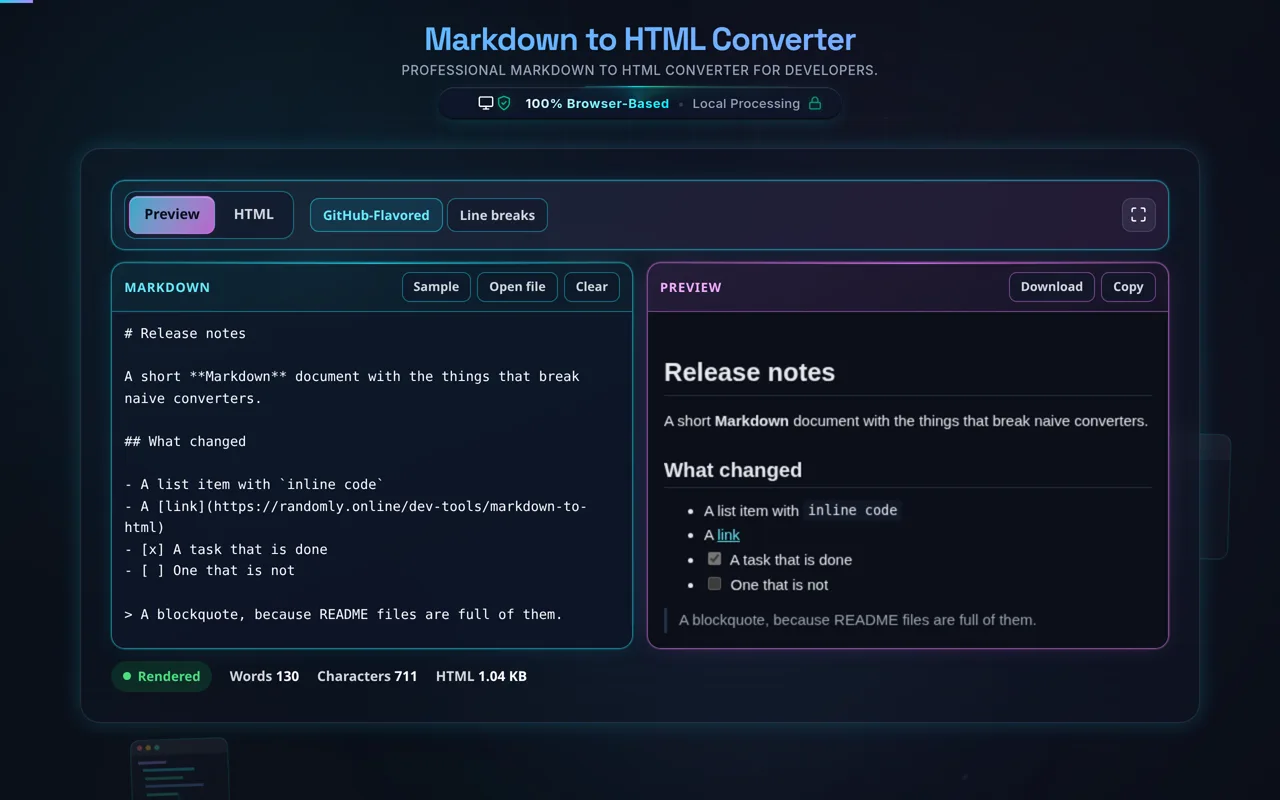
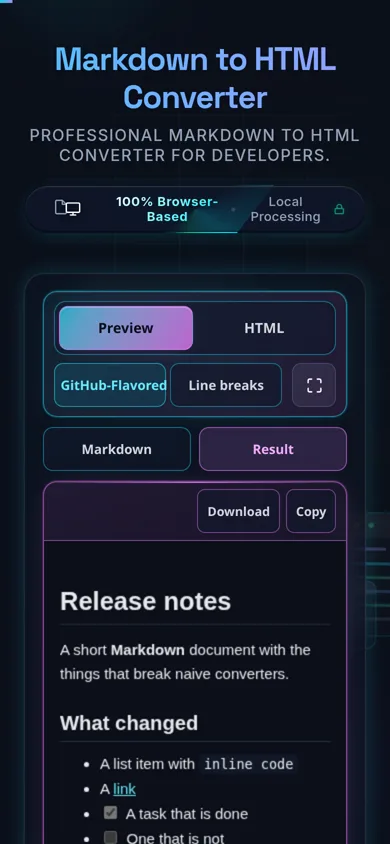
Visual Preview

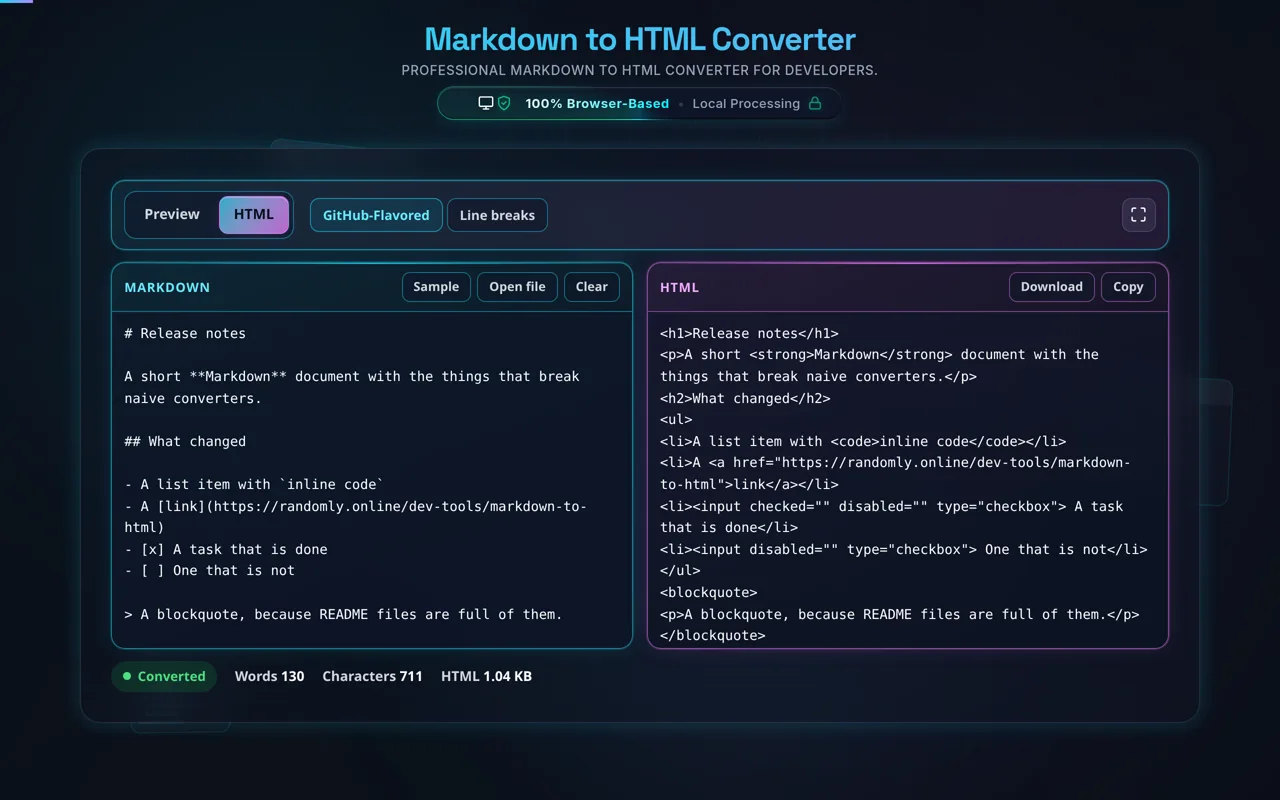
Raw HTML

Privacy Focused

🔒 Local Processing. Your code never leaves your device.

Instant Results

🌐 Fully Client-Side. Runs instantly in your browser.

No Signup

⚡ No accounts. No API keys. Just open and use.

Browser Based

🚀 No installs, no CLI, no build step.

Advanced Markdown to HTML Conversion Engine

Our Markdown to HTML Converter is a sophisticated, developer-first workspace designed to eliminate the friction between content creation and web deployment. In the modern web ecosystem, Markdown has become the lingua franca for documentation, technical blogging, and version control. Our tool leverages a high-performance parsing engine that processes syntax entirely within your browser, ensuring that sensitive technical documentation never leaves your device.

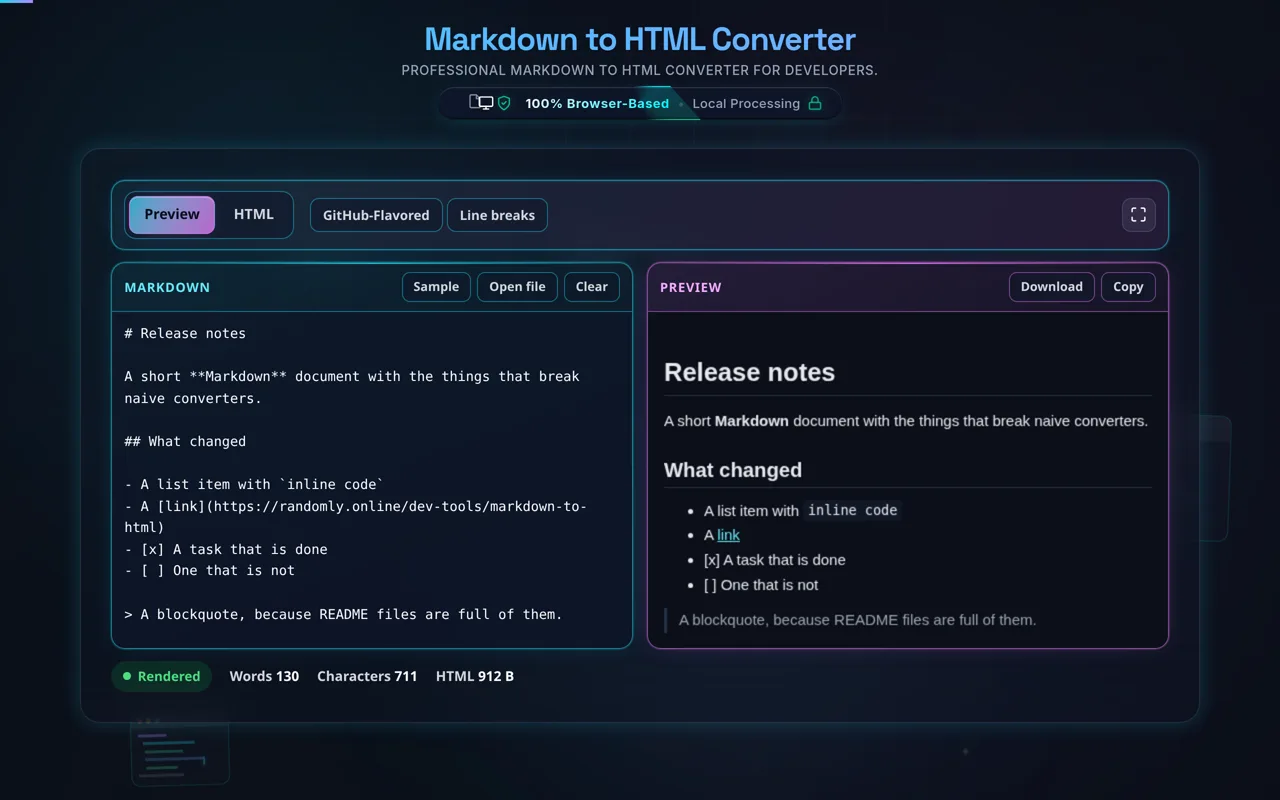
Whether you are drafting technical documentation, preparing a GitHub README, or converting complex nested lists into structured markup, our interface provides a dual-pane environment that keeps you focused. By using our HTML Minifier alongside this converter, you can ensure your final output is not only semantically correct but also optimized for lightning-fast page loads. We support full GitHub Flavored Markdown (GFM), including task lists, tables, and fenced code blocks.

How to Use the Markdown Converter Effectively

Mastering our workspace is intuitive but offers deep features for power users. Start by typing or pasting your content into the left-hand editor pane. You will notice that the "Visual Preview" updates instantly. To verify the underlying structure, simply click the "Raw HTML" toggle in the right-hand header. This allows you to inspect the div, p, and pre tags generated by the parser. If your project requires high-security identifiers, consider using our UUID Generator.

For complex layouts, you can utilize standard Markdown tables. Our converter handles alignment markers automatically. When dealing with code snippets, use triple backticks followed by the language name (e.g., javascript) to trigger proper syntax grouping. For those working with international dates in their documentation, our Unix Timestamp Converter can assist in generating precise publication headers.

Frequently Asked Questions

How do I convert Markdown to HTML?

Paste or type your Markdown (or load a local file), and the tool parses it and renders the matching HTML — headings, bold and italic, links, images, lists, blockquotes, and code. Turn on GitHub-Flavored Markdown for tables and task lists. A live preview shows the result, and you can copy the HTML or download it. Everything happens in your browser; nothing is uploaded.

Does this upload my Markdown, and does it work offline?

No upload, and yes it works offline. All conversion happens in your browser using JavaScript — there's no server receiving your text, no logging, and no tracking. That matters for drafts and internal notes. Once the page has loaded it keeps working with no internet connection, which you can confirm in your browser's network tab.

What Markdown syntax does it support?

The full common set: ATX and setext headings, bold and italic, links and images, ordered and unordered lists (including nesting), blockquotes, inline and fenced code, horizontal rules, and hard line breaks. With GitHub-Flavored Markdown enabled you also get tables, task lists, strikethrough, and autolinks. It targets CommonMark plus GFM, so behaviour matches what you'd expect on GitHub for most documents.

Does it support tables, task lists, and strikethrough?

Yes, when GitHub-Flavored Markdown is enabled. Pipe tables (| a | b | with a --- separator row) render as HTML <table> elements, task lists (- [ ] and - [x]) render as checkboxes, and ~~text~~ renders as strikethrough. These are GFM extensions rather than core Markdown, so they only appear when GFM is on — which is why the option exists.

Is the HTML safe to embed, and does it sanitize?

Be careful here. Markdown allows raw inline HTML, and this tool passes it through unchanged — the output is not sanitized. For Markdown you wrote yourself that's fine. But if you're converting Markdown from an untrusted source (user input, a third party), a <script> or malicious attribute could pass straight through, so sanitize the HTML before embedding it to avoid XSS.

Does the HTML include CSS or styling?

No — the output is structure, not styling. You get clean, semantic HTML (<h1>, <p>, <ul>, <pre>), but no CSS is attached, so it inherits the styles of whatever page you embed it in. The live preview here uses its own look purely to illustrate the rendering; the copied HTML has no styling of its own. Add your own CSS to match your site.

Can I get syntax-highlighted code blocks?

Yes. Enable syntax highlighting and fenced code blocks (``` ` ``) render as highlighted <pre><code> with language classes. Add a language hint after the opening fence (for example `` `python ```) so the highlighter knows the grammar. The highlighting is applied client-side, and the resulting class names follow common conventions so they work with standard highlighting stylesheets on your site.

Can I convert a README to HTML?

Yes. Paste a GitHub README (or any Markdown file) with GitHub-Flavored Markdown enabled, and you'll get HTML close to how GitHub renders it — headings, tables, task lists, and fenced code included. It's a common way to preview a README or publish it outside GitHub. Remember the HTML has no CSS, so it will look plain until you apply styles.

Can I load a Markdown file instead of pasting?

Yes. You can open a local .md file and the tool reads it directly in your browser with the FileReader API — the contents load into the editor without being uploaded anywhere. This is handy for larger documents or ones you'd rather not copy and paste, and it's exactly as private as typing the Markdown by hand.

What's the difference between the preview and the HTML output?

The preview is the rendered result — how the HTML looks in a browser — while the HTML output is the underlying markup you copy or download. Think of the preview as what your readers see and the HTML as what you paste into a page or CMS. The preview is styled for readability here; the raw HTML you copy carries no styling of its own.

Can it handle large Markdown documents?

Usually yes. Because it runs locally, the limit is your device's memory and CPU rather than a server cap, and modern browsers render large documents quickly. Very long or deeply nested Markdown can make the live preview update more slowly, but there's no upload size limit from us and nothing is sent anywhere — it's purely local performance.

Is it free, and are there limits?

Yes, completely free — no payment, no signup, no account, and no usage caps or watermarks. Since everything runs in your browser, there's nothing for us to meter; the only practical limit is your device's performance on very large documents. Use it as much as you like, including offline once the page has loaded.

Still have questions?

If you can't find the answer you're looking for, feel free to contact our support team.

Contact Us

Need a hand?

Still have questions?

If you can't find the answer you're looking for, feel free to contact our support team.

Contact Us