Code Diff Checker

Instantly compare two blocks of text or code to highlight exact differences.

100% Browser-Based Local Processing
Added: 0 Removed: 0 Changed: 0
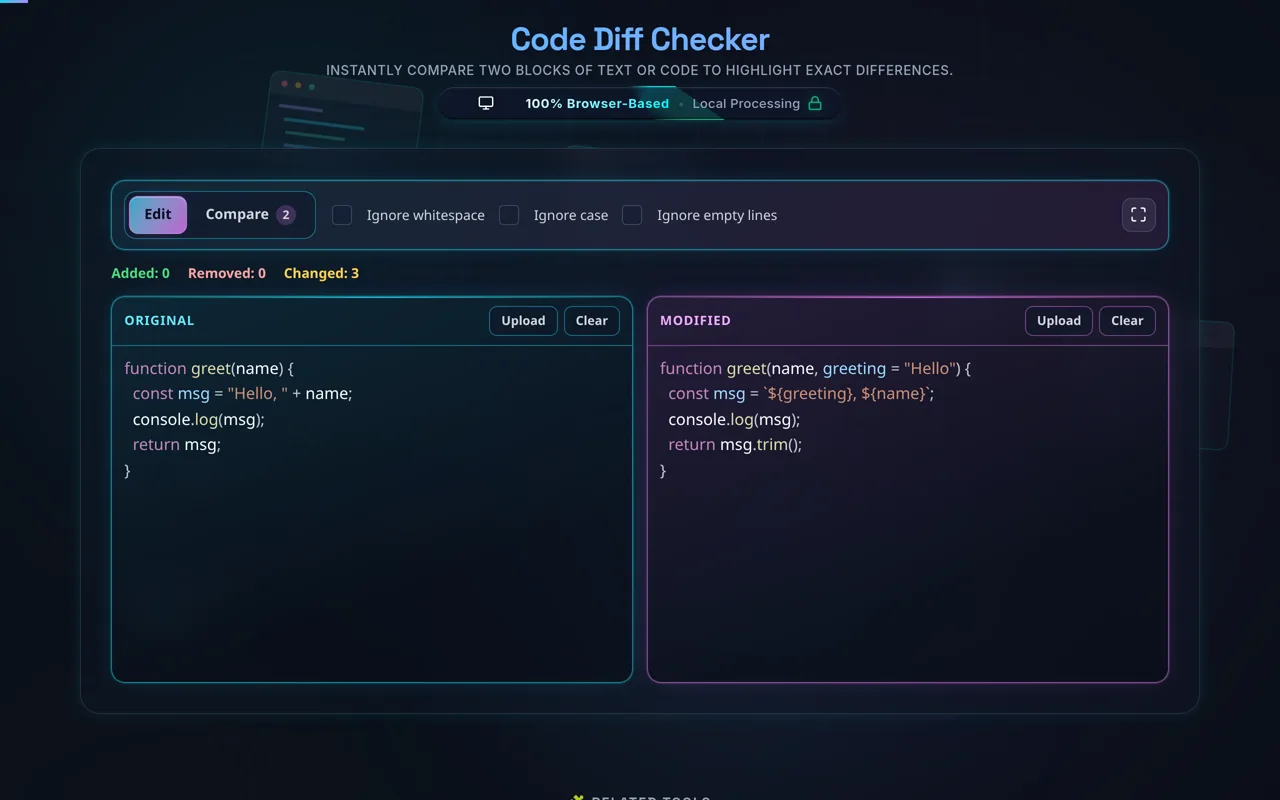
Original Content
Modified Content
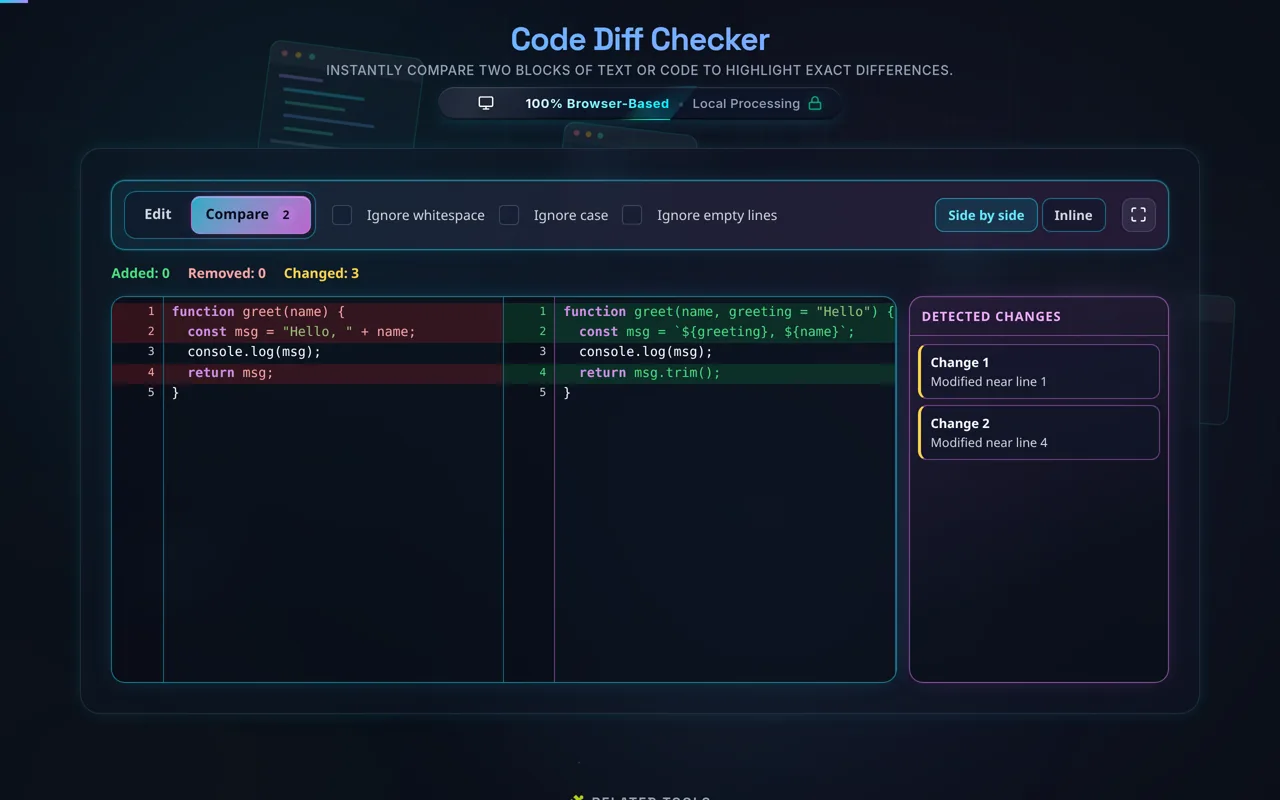
Detected Changes
Run comparison to see changes...

Frequently Asked Questions

How do I compare two blocks of code or text?

Paste your original version into the left panel and the modified version into the right panel (or use Upload for either). The diff recomputes automatically as you type, with a short debounce, and shows additions, removals, and changes in your chosen view mode — Side-by-Side or Unified Inline.

Can I upload files instead of pasting?

Yes. Click Upload on either panel to pick a file — it's read directly as text using your browser's own file API, with no upload to a server. There's no file-type restriction, so make sure you're selecting a genuine text/code file; a binary file will be read as garbled text rather than being rejected.

What's the difference between Side-by-Side and Unified view?

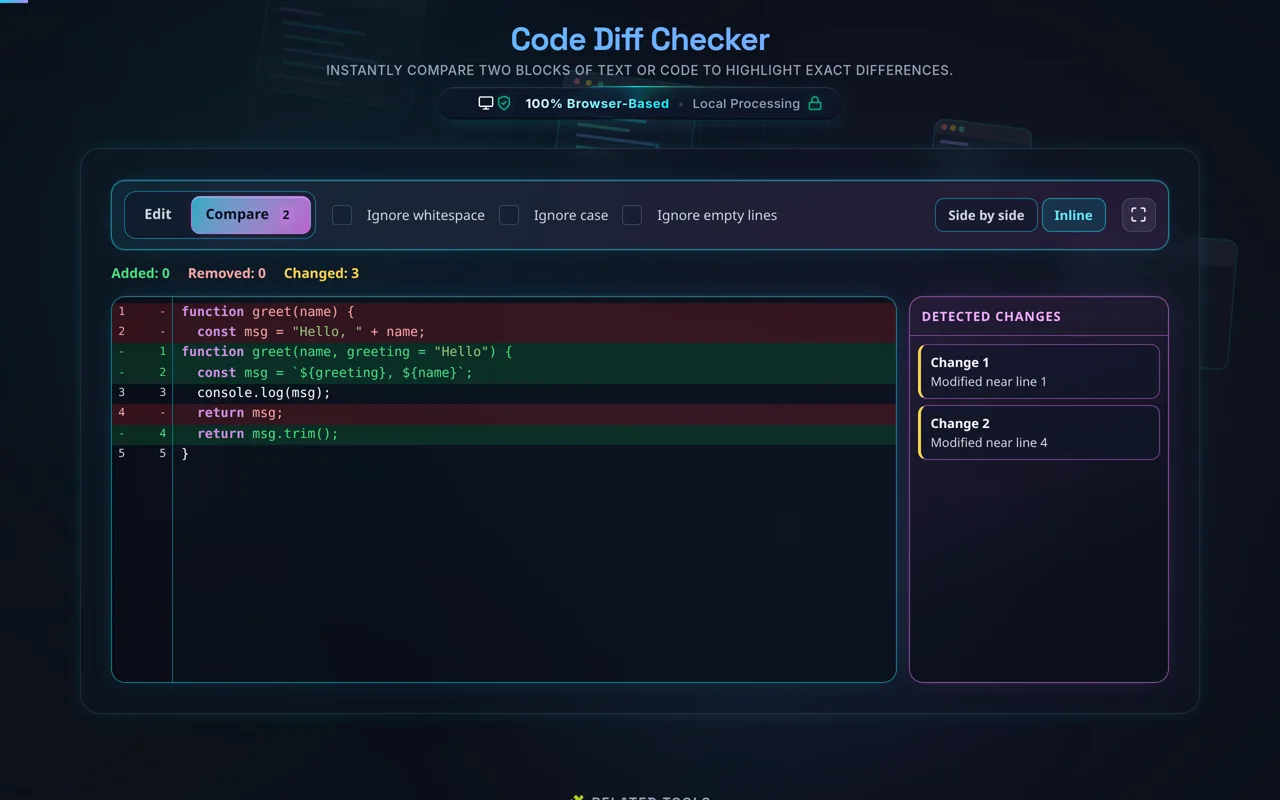
Side-by-Side shows the original and modified text in two synchronized panels — good for a classic two-column comparison. Unified Inline stacks both versions into a single scrollable document with removed lines and added lines shown in sequence — often easier for scanning a long linear change history in one pass.

What does "Ignore Whitespace" actually do?

More than you might expect. Lines that differ only by leading or trailing whitespace — like indentation — are already treated as identical before you check this box; that's the default comparison behavior. Checking "Ignore Whitespace" goes further: it strips all internal whitespace too, so "a b" and "ab" would then be read as the same line.

What does "Ignore Empty Lines" do to the line numbers?

It removes blank lines from both texts before computing the diff, and the line numbers shown afterward reflect positions in that filtered list — not the real line numbers from your original file. If you need to locate a change in the actual source file, count blank lines back in rather than trusting the displayed number directly.

Does this highlight the exact word or character that changed in a line?

No — the diff works at the line level only. A changed line is shown as the full old line in red next to the full new line in green (or stacked, in Unified view), not as a highlight of the specific characters that differ within it. For long, similar-looking lines, you'll need to visually scan both versions.

What counts as a "Changed" line vs. a separate Added/Removed line?

When a removed line is immediately followed by an added line in the computed edit script, the pair is counted as one "Changed" line instead of one Added plus one Removed. It's a positional pairing, not a semantic judgment that the two lines are "the same line, modified" — it just reflects that they sit next to each other in the diff.

Does this run in my browser, and does it work offline?

Yes. The entire diff — including files loaded via Upload — is computed with your browser's own JavaScript. Nothing is uploaded to a server, nothing is logged, and the tool keeps working with no internet connection once the page has loaded. Free, with no account or signup.

Does the syntax coloring work for every programming language?

Not really — it's one generic pass that colors comments, HTML-style tags, quoted strings, a short list of common keywords (mostly JavaScript/C-like: function, if, else, class, and similar), and numbers. It's a readability aid across many C-like and markup languages, not a real per-language grammar — a keyword specific to another language, like Python's def, won't be recognized.

Is there a file size or type limit for uploads?

No hard limit or type check in the tool itself — any file you select is read as text. Very large files are bounded only by your browser's own memory and rendering performance, since there's no server doing the work. There's no restriction preventing you from selecting a non-text file, so pick text/code files deliberately.

Can I navigate directly to each change?

Yes — the Changes sidebar lists every chunk (added, removed, or changed) in order. Click any entry and the view smooth-scrolls to that exact spot with a brief highlight flash, which is faster than manually scrolling through a long diff to find each difference.

Is it free, and are there limits?

Yes, completely free — no payment, no signup, no account, and no usage caps. Because everything runs in your browser there's nothing to meter. The practical limits are the ones described above: line-level diffing only, and performance bounded by your own device on very large inputs.

Still have questions?

If you can't find the answer you're looking for, feel free to contact our support team.

Contact Us

Privacy Focused

🔒 Local Processing. Your code never leaves your device.

Instant Results

🌐 Fully Client-Side. Runs instantly in your browser.

No Signup

⚡ No accounts. No API keys. Just open and use.

Browser Based

🚀 No installs, no CLI, no build step.

Introduction to Code Diffing

Welcome to the ultimate Code Diff Checker, a robust tool tailored for developers, writers, and IT professionals who need to identify exact changes between two versions of text or source code. In modern software development, tracking modifications is an essential component of version control systems like Git, Subversion, and Mercurial. Understanding what was added, removed, or modified ensures safe deployments, thorough code reviews, and rapid bug squashing.

Before committing changes to a repository, executing a diff check helps prevent logic errors and syntax mistakes. This tool provides a highly visual, instant comparison layout, breaking down complex modifications line-by-line. Whether you are debugging configuration files, verifying API responses, or comparing outputs from a JSON Formatter to raw server data, seeing the structural differences with syntax highlighting significantly boosts productivity.

Additionally, keeping track of minute formatting updates is easier than ever. When you refactor a script or compress front-end files using tools like an HTML Minifier, you might want to verify that the core logic remains completely untouched despite the removed whitespace. Our sophisticated algorithm executes entirely client-side, meaning your proprietary code, secure tokens, or private manuscripts are processed securely within your own browser engine and are never transmitted to external servers. This zero-server-communication design guarantees 100% data privacy.

The interface integrates multiple visual cues—such as green highlights for additions and red highlights for deletions—ensuring that you immediately spot where discrepancies exist without manually reading through hundreds of lines. Embrace a smoother debugging workflow and code review process today.

How to Use the Code Diff Checker

Using our Code Diff Checker is highly intuitive, designed to fit seamlessly into any fast-paced development or editing workflow. Follow these detailed steps to get the most accurate comparisons.

Step 1: Input Your Content
Start by populating the "Original Content" panel on the left with the baseline version of your code or text. You can copy-paste directly from your IDE, or use the "Upload" button to insert a local text-based file. Repeat the process for the "Modified Content" panel on the right. If you are examining decoded web tokens or strings from a Base64 Encoder Decoder, paste the raw outputs straight into the input areas. The engine immediately begins analyzing the content as you type or paste.

Step 2: Adjust Comparison Settings
For precise analysis, utilize the toolbar controls. Toggle "Ignore Whitespace" if you only care about logic changes rather than indentation fixes. Select "Ignore Empty Lines" to condense the view, or "Ignore Case" if you are comparing SQL queries or text where capitalization is irrelevant. These settings help filter out the noise and let you focus entirely on the functional differences.

Step 3: Choose Your View Mode
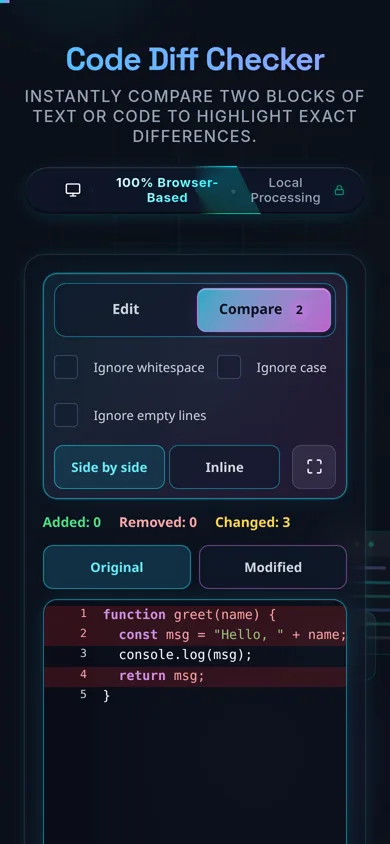
Depending on your screen size and preference, select either the "Side-by-Side" mode (classic two-pane view) or the "Unified Inline" view, which stacks the added and removed lines chronologically into a single, cohesive document. Mobile users will automatically see tab-based navigation for easier scrolling.

Step 4: Analyze the Highlighted Output
Scroll through the generated diff below the input panels. You will notice clear color-coding: red indicates lines removed from the original text, while green highlights brand new additions. Gray areas represent unchanged text. Sync scrolling ensures that as you navigate through a massive XML Formatter payload, both the left and right panels stay perfectly aligned, allowing you to trace changes sequentially and effortlessly.

FAQ: What is code diffing and why is it important?

Code diffing, short for difference computation, is the process of comparing two files or strings of text character-by-character or line-by-line to identify and display exactly what has changed between them. It is the foundational technology behind modern version control software. When developers write new code or alter existing architecture, a diff tool generates a visual patch representing those exact modifications.

This process is critically important because modern applications involve hundreds, sometimes thousands, of files. Trying to locate a single removed semicolon or a changed variable name manually is an impossible and highly error-prone task. Using a diff checker immediately highlights these anomalies. For instance, if you are standardizing database queries, comparing your raw code against output from an SQL Formatter will show exactly where indentation and syntax structures were adjusted.

Moreover, diffing plays a major role in collaborative environments. Before a "pull request" is merged, reviewers analyze the code diff to ensure the new code meets quality standards, doesn't introduce security vulnerabilities, and strictly adheres to project guidelines. Without accurate diff tools, team-based software engineering would be a chaotic, unmanageable process.

FAQ: Is my proprietary code data secure when using this tool?

Yes, absolutely. Security and data privacy are the core architectural principles behind our Code Diff Checker. We understand that developers frequently deal with highly sensitive materials, including proprietary algorithms, private API keys, secure passwords, and internal documentation. Any leak of this information could compromise entire organizations.

To guarantee your safety, this tool operates exclusively on the client side. This means that the JavaScript algorithms computing the text differences run entirely within your device's web browser (local memory). The code you paste into the text areas is never transmitted over the internet, sent to a backend server, or stored in any external database.

Even if you are working with security mechanisms, such as analyzing cryptographic outputs from a Hash Generator, your data remains strictly confined to your active tab. Once you close or refresh the webpage, all the code input is permanently destroyed from the local state. There are zero background network requests accessing your clipboard content, making this an enterprise-safe utility for your day-to-day operations.

FAQ: How do the advanced settings enhance the comparison?

The advanced settings—Ignore Whitespace, Ignore Case, and Ignore Empty Lines—are powerful filters designed to eliminate irrelevant "noise" from your comparisons. Often, text files contain structural changes that do not affect the actual execution or meaning of the code.

For example, if you run a messy stylesheet through a CSS Formatter, the tool will add hundreds of spaces and line breaks to beautify the code. If you try to run a standard diff comparison, almost every single line will be marked as "changed" due to the new spacing, hiding any actual color code or property updates you made. By toggling "Ignore Whitespace," the diff engine strips out all tabs and spaces before comparing, instantly revealing only the meaningful, logical modifications.

Similarly, the "Ignore Case" option is invaluable when working with case-insensitive languages or simple text documents where capitalization shifts are trivial. "Ignore Empty Lines" collapses large vertical gaps, making massive files easier to navigate. Utilizing these controls allows developers and writers to perform surgical reviews, drastically cutting down the time required to approve changes, debug issues, or analyze file iterations.

Need a hand?

Still have questions?

If you can't find the answer you're looking for, feel free to contact our support team.

Contact Us